Your song library: open, find, add and delete songs
Your song library is the list under Songs in the menu: every song in the band you have open, with its chords and lyrics. From here you open a song, find it again by searching or sorting, add new songs with chords found on the web or written by you, and delete the ones you've stopped playing. If your songs live in another app today, you can bring them across instead of adding them one at a time.
Updated
Open a song
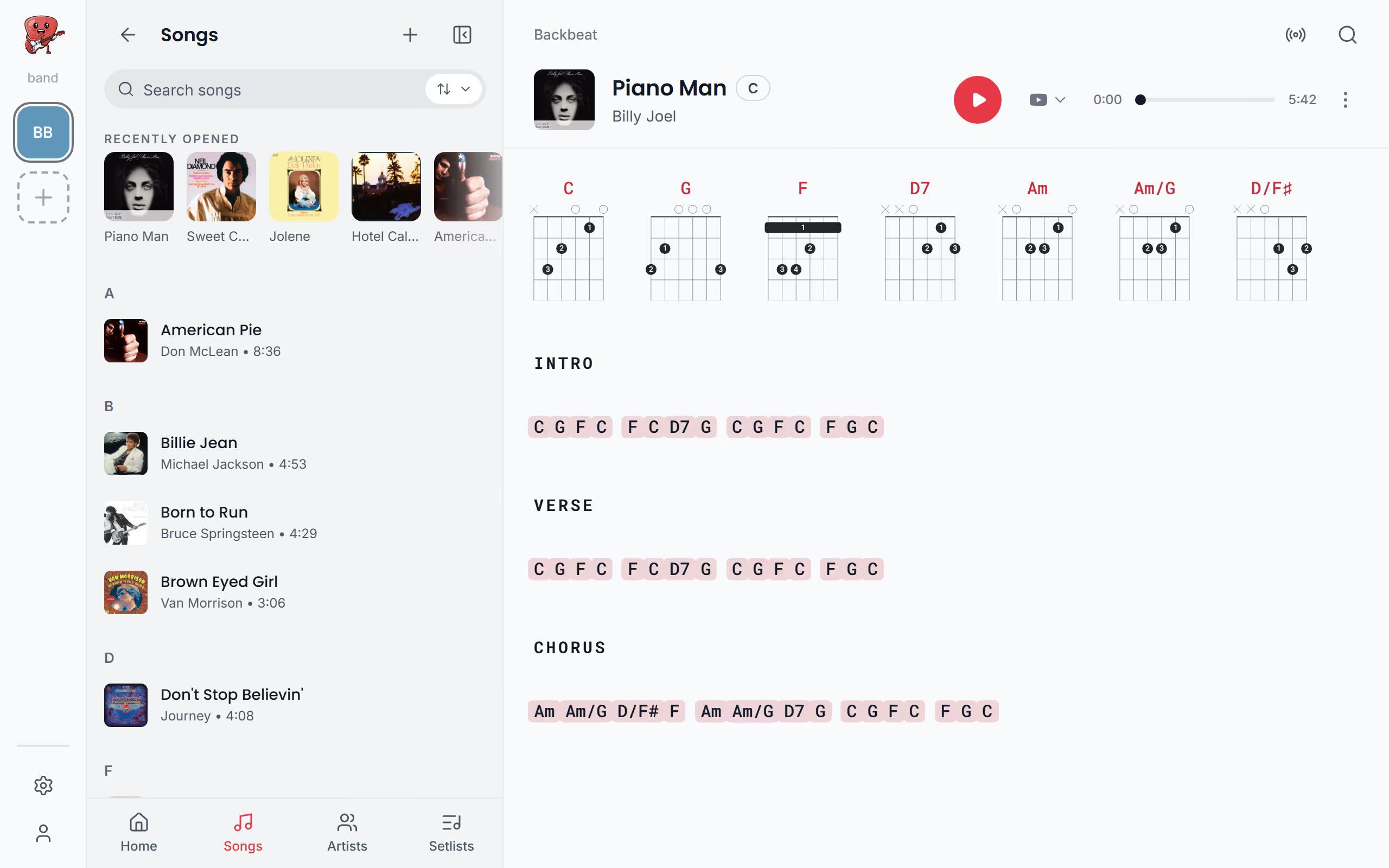
Most of the time you open a song from the list or from search, and the player shows both ways. The A to Z list under Songs is quickest when you know roughly where a song is. Search is quickest when you remember a word of the title or the artist. Either way it opens on its chords and lyrics page.
There are other doors too. A song you had open a moment ago waits under Recently opened, a song in a setlist opens from the setlist, your songs by one artist are under Artists, and while a song is playing, a tap on its cover in the player at the bottom takes you back to it.
Find the songs you opened last
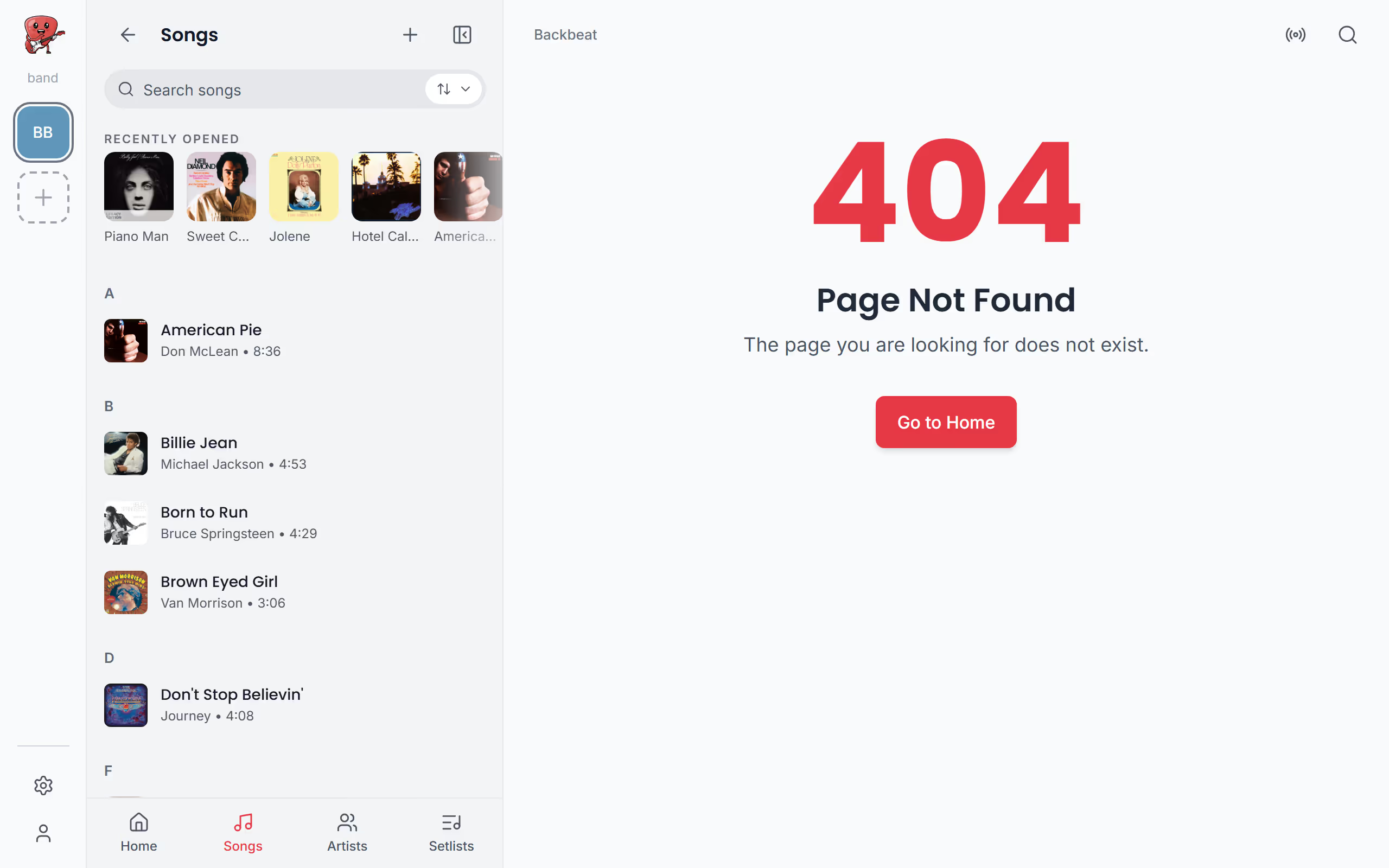
Mid-rehearsal you often want the song you just had open, not the whole list. That's what Recently opened is for: it sits at the top of your song list as a row of covers you scroll sideways, with the last ten songs you opened in this band, newest first. It's kept on the device you use, so your phone and your laptop each remember their own, and it steps aside while you search.
Search your songs
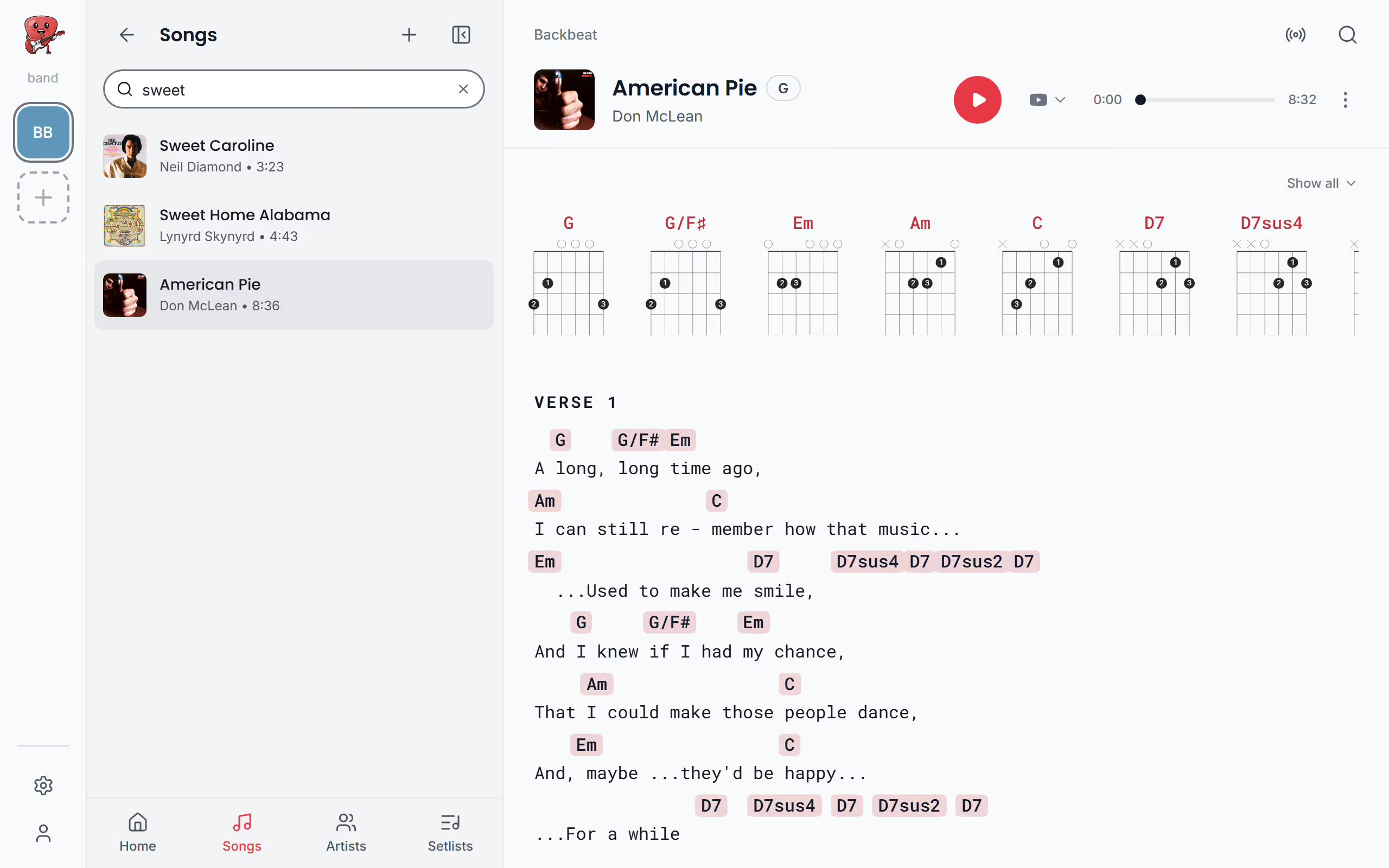
Once the list gets long, searching beats scrolling. Search songs, at the top of the list, filters it as you type, and it looks in the titles, the artists and the lyrics, so a line you remember from the chorus is enough. A match in the title ranks above one in the artist, and one in the lyrics comes last. To search everything at once, setlists, artists and songs online included, use the search at the top.
Sort your songs
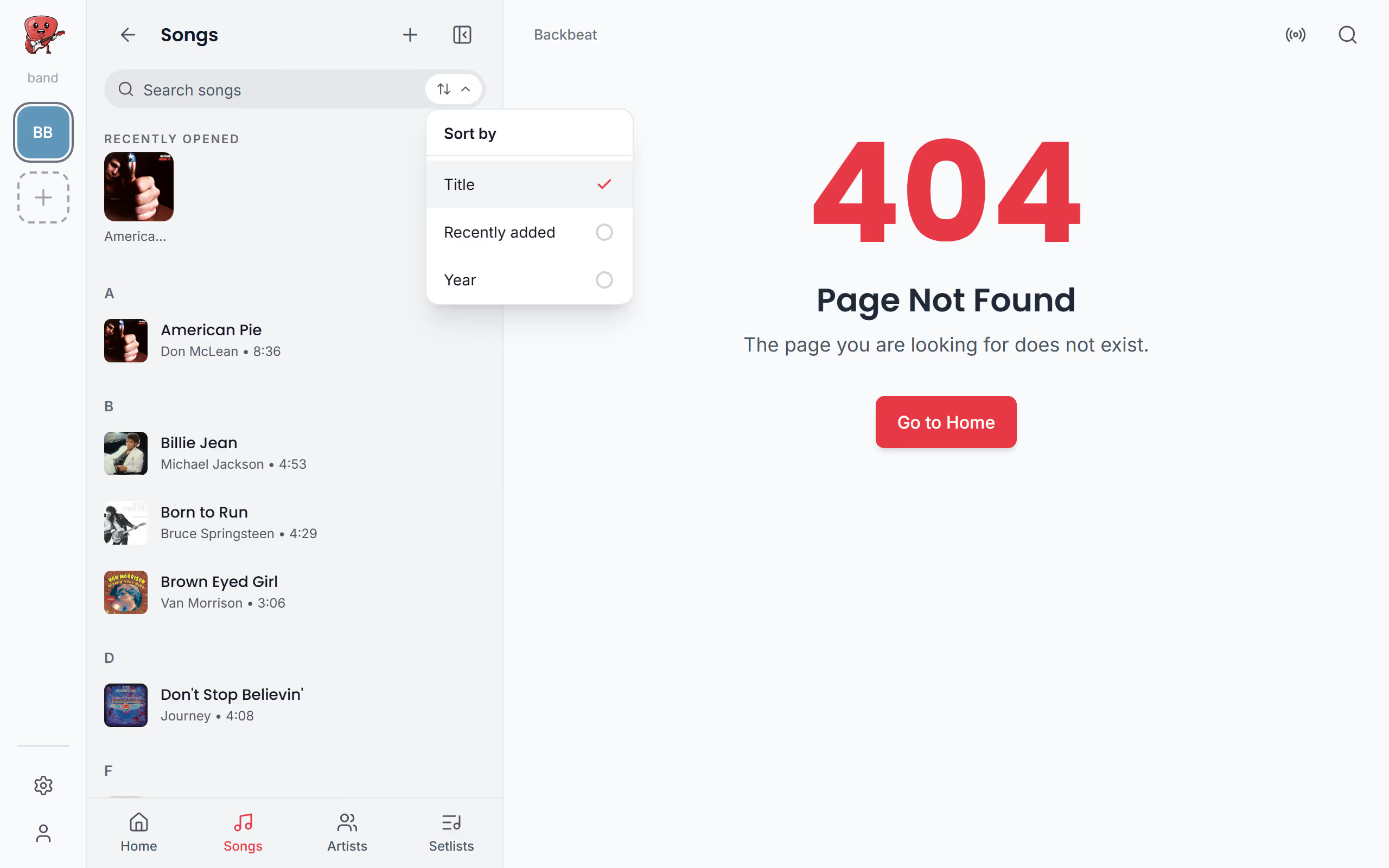
The sort button above the list sorts by Title, Recently added or Year. Title is where the list starts and adds an A to Z rail down the side, so a tap on a letter jumps straight there, and Recently added puts the songs you added last at the top. Year groups the songs by decade under headings like 80s or 2010s, newest first, and shows each song's year in its row. Songs with no known year come last, under Unknown.
Add a song
New songs come in two ways, and the player shows both. Open the menu, tap + and choose New song. If the song is out there already, Search online finds it and looks up chords and lyrics for it on the web in seconds, so you get a full chord sheet without typing a line. If it's your own song, or one nobody has charted, Create song starts an empty song you write or paste yourself.
You can also start from other places. An empty song list has an Add song button, the search at the top lists songs from the web under Web search with a + to add one, an artist's page has a + beside every song you don't have yet (see Artists), and a setlist's + has Add songs, which adds new songs straight into the set. To bring a whole library at once, import it from another app.
Pick another version
The first chords found aren't always the version you play; it may be another arrangement. The results are listed, and you step through them with the arrows at the bottom, which show where you are, such as 2 / 7, until one looks right. Then tap Add to put it in your library. If nothing fits, use Search by to search again with the Artist, the Title or a Custom query of your own words, such as a live version.
Paste a song from a website
Sometimes the version you want is on another site. At the end of the results, choose Not the version you wanted?: you get Search Ultimate Guitar and Search the web, which open the song's search in your browser. Copy the chords and lyrics on the page you find, come back, tap Paste from clipboard or paste them into the box, and tap Add. Stage Friend puts the chords back above the right words, ready to transpose like any other song.
In the Stage Friend app on a phone or tablet the page opens inside the app instead, with an Add button on it that brings the song in without copying. If a result won't load, Stage Friend offers the same way in, with Open source page to open that very page.
Write a song yourself
For a song of your own, start from nothing. Create song opens an empty song: give it a title and an artist, then type or paste the chords and lyrics. If you paste a chart that has the chord names as plain text, Sprinkle Chords turns them into real chords afterwards. A song that has no lyrics yet shows Fetch lyrics & chords to look them up later, and Write it yourself to type them in.
Imports on the free plan: how many songs
On the free plan, Jammer, you can import 40 songs from the web to start with, and 2 more every month after that. A month's imports don't carry over to the next. Once you're down to the last ten of the first 40, and every month after that, the search shows how many you have left. Solo Pro and Stage Pro import without a limit, see Plans.
Songs you start with Create song never count, whether you type the words or paste them in, and neither do songs you move from another app. A version you paste back from a website during an online search is still a song found online, so it counts like the others. When the month's imports are used up, you can still add the song with Add song without lyrics and type or paste the chords yourself.
Delete a song
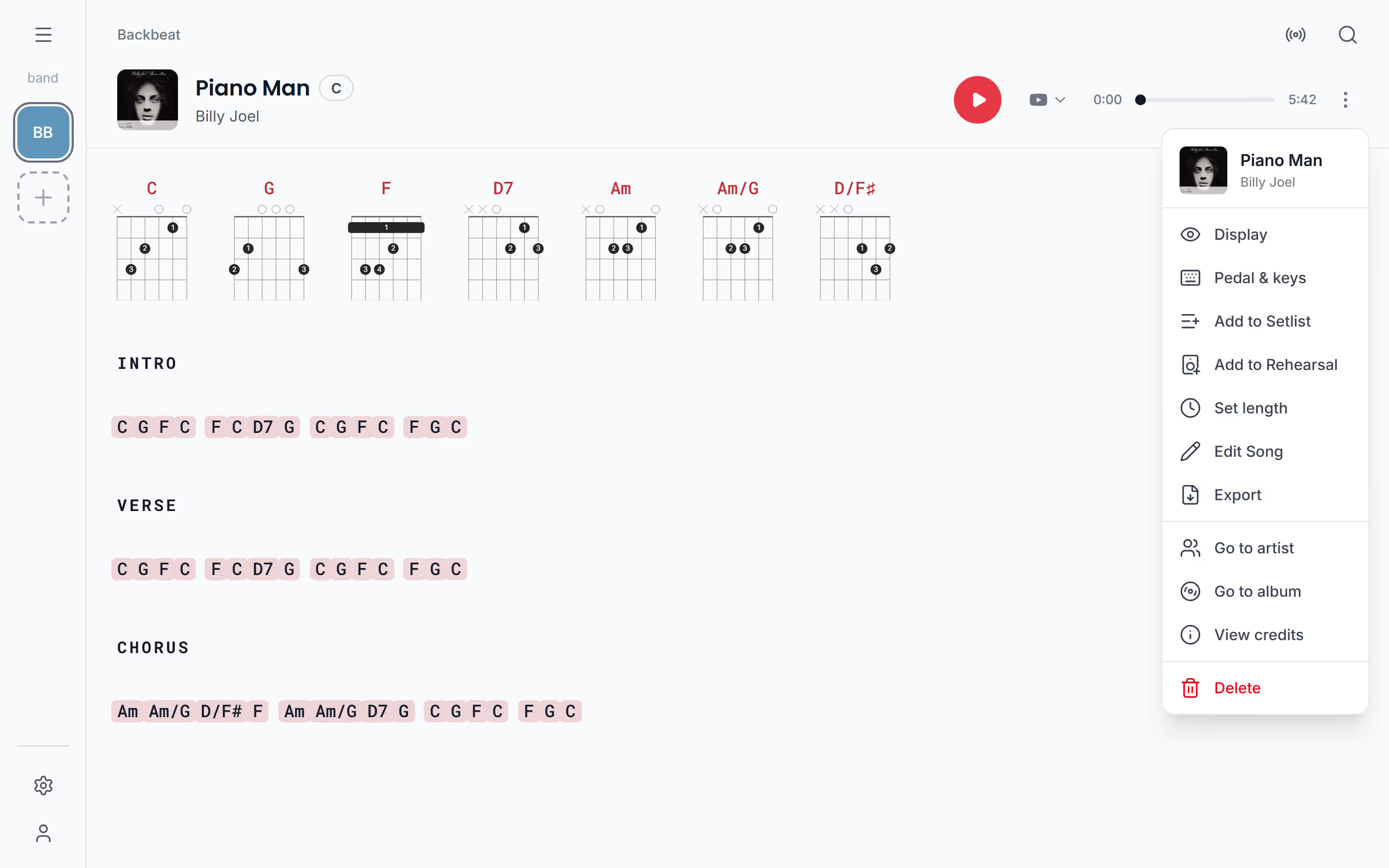
When a song drops out of the set for good, you can delete it. On its chords and lyrics page, open the three dots, choose Delete and confirm with Delete song; the row is there when you can edit the band's songs. In the song list there are two more ways: on a phone, or a tablet held upright, swipe the song to the left and tap Delete, and on a computer, or a tablet held sideways, open the three dots at the end of the song's row.
The song is then gone for the whole band, and from every setlist it was in. Once your library is in shape, open a song and get to know the chords and lyrics page, or put your songs in order in a setlist.
Questions
- Where do the chords come from?
- The chords come from chord sheets published on the web, which Stage Friend searches when you add a song. When the first version isn't the one you play, step to another, or paste the one you want from any site. See Pick another version.
- Can I add a song without chords?
- Yes, a song doesn't need chords. In the online search, choose Add song without lyrics, or create the song yourself and leave the chords out, then add them later in the song editor.
- Is there a limit to how many songs I can have?
- No, every plan has room for as many songs as you like. The free plan limits only imports from the web.
- Does deleting a song give me an import back?
- No, deleting a song doesn't give you a web import back on the free plan. The count is of songs imported, deleted or not.