Make your gig public and share the link
To let your audience see your gig, vote or request songs, make the gig public and share its link. A public gig gets its own page on live.stagefriend.app that anyone can open in a phone's browser, with no app and no account. Put the link where your audience already is, on social media or in an invitation, and in the room let them scan the gig's QR code from a stand or a printed card. What the page shows is up to you, and you can make the gig private again whenever you like.
Updated
Make it public
A private gig is only seen by your band, which is right while you're still planning it. When you're ready for the audience, tap the button at the top of the gig page, which shows Private or Public, and choose Public: the gig gets its own page on live.stagefriend.app, at an address made from your band and the gig's name. The same switch is in the gig's three dots as Public page, and in Edit, where you choose between Private and Public. You can also make a gig public when you create it, and if you open the Votes or Requests tab in the menu while the gig is still private, it offers Make public right there.
Choose Private again to close it, and within a few minutes anyone who opens the link sees a page-not-found message rather than the gig. Only band members who can edit the gig can change this; the others see whether it's public or private.
- Stage Pro
Starts on your gig's page. Not there yet? See Open your gig.
Show the gig's QR code
In the room itself a link is hard to pass around, so a public gig also has a QR code that guests scan with their phone camera, with no app needed. Open it with the QR button at the top of the gig page, with QR code in the gig's three dots, or on stage from the menu, where the gig's three dots have QR code too. The card above the code tells guests what they can do, and it follows what you have turned on: Scan to vote and request songs when both are on, or just voting, requests or the setlist when that is what the gig offers.
Full screen fills the screen with the code, for a phone or tablet on a stand by the stage, and a tap anywhere closes it. Save image makes a picture of the card for a poster or a table card: on a phone it opens the share menu, so you can save or send it, and on a computer it downloads. The QR code only exists while the gig is public, so make it public first, and change the gig's web address before you print, since the code points at it.
- A public gig
Starts on your gig's page. Not there yet? See Open your gig.
Show your setlist to guests
Some audiences like to know what's coming, and a setlist on the page gives them something to look at before the band starts. Turn on Show setlist under Configuration, and guests see the gig's songs, set by set with a break between the sets if your setlist has them. Leave it off if you'd rather keep a surprise or two, since voting and requests work either way.
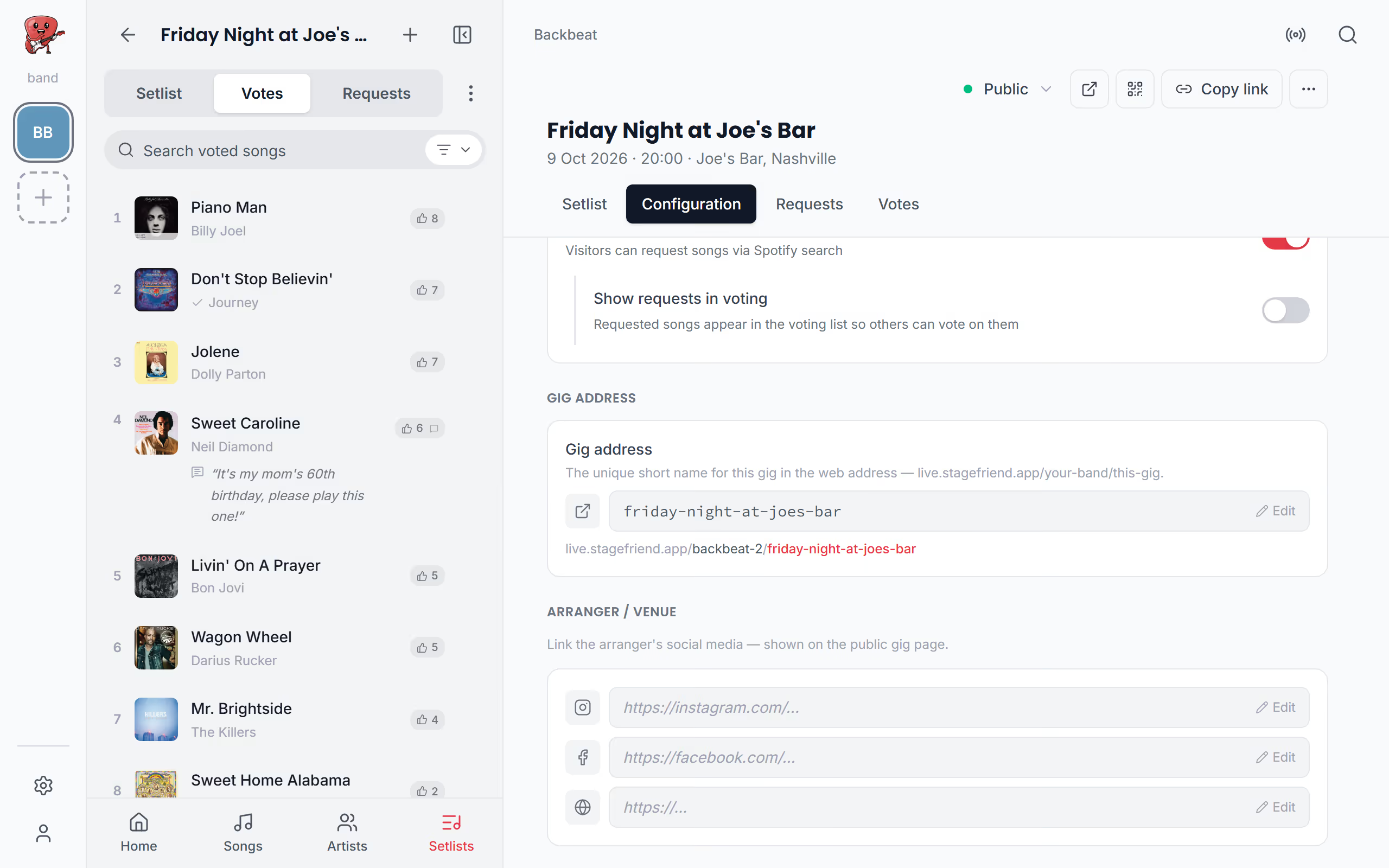
Change the gig's web address
The gig's link ends in a short address made from the gig's name, such as live.stagefriend.app/your-band/this-gig. Under Configuration, Gig address lets you change that last part to something shorter, or easier to read out from the stage, using at least three lowercase letters, numbers and hyphens. Old links stop working when you change it, so do it before you share the link or print the poster, and do it with a connection, since the address is checked online. With the link out, turn on song voting or song requests, and read what your guests see before the doors open.
Questions
- Do guests need an app or an account to open the gig page?
- No, guests open the link in their phone's browser, with no app to install and no account to make.
- What happens to the link when I make the gig private?
- The gig page stops showing within a few minutes of the gig turning private, and anyone who opens the link then sees a page-not-found message. Make it public again and the same link works again.
- Do public gig pages need Stage Pro?
- Yes, gigs, audience voting and song requests are part of Stage Pro, which costs $13 a month or $108 a year. See Prices.