How chords look: style, colour and size
In Stage Friend you choose how chords look above the lyrics: a ready style such as High contrast, or your own colour, box, size and weight. Chords need to jump out when you glance down mid-strum, without crowding the words the singer is reading. The styles are under Settings, Text and chords, with a preview, and the same place decides whether chords, lyrics and chord diagrams show when a song opens.
Updated
Pick a chord style
Start with a ready style and build your own only if none fits. Standard shows the chords in red with no box, calm on the page and quick to scan. Classic puts them on grey boxes, the look you know from the tab sites. High contrast uses bold type on yellow boxes and is the most legible choice in a dark room, so it pairs well with the Stage theme. Subtle keeps them grey with no box so the words lead, which suits a singer who only glances at the chords now and then.
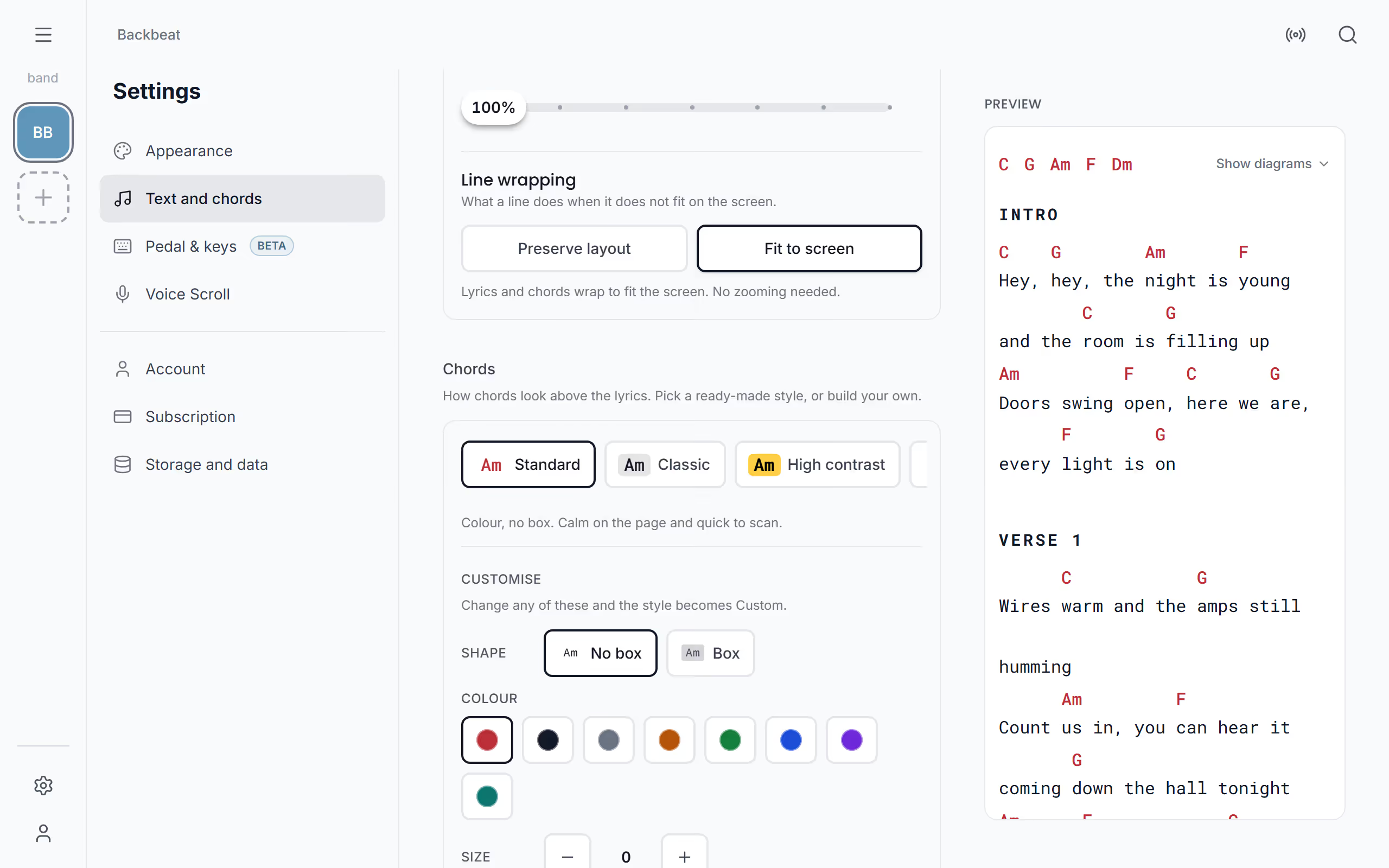
Make your own style
Under Customise you set each part yourself: the Shape (a Box or No box), the Colour (a row of colours from red to teal, or No colour), the Size next to the lyrics with minus and plus, and the Weight, Normal or Bold. The preview shows each change straight away. When your combination is one of the ready styles, that style lights up, for instance Standard turned grey becomes Subtle, and any other combination is Custom. Bigger, bold chords help a guitarist reading from the floor, while a quiet colour keeps a busy chart calm.
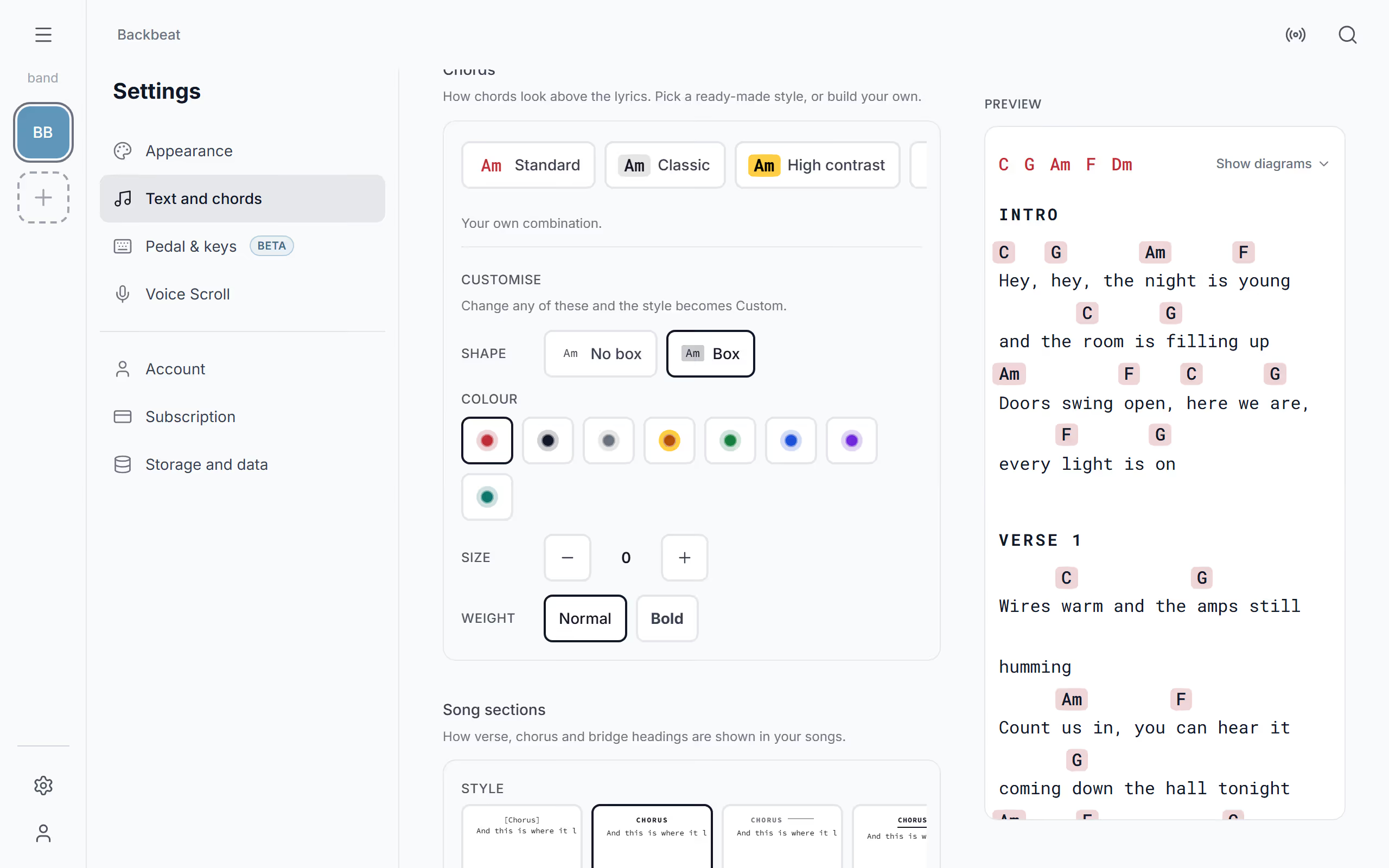
Show chords and diagrams when a song opens
Not everyone in the band needs the same page. Under Shown when a song opens, turn Chords, Lyrics and Chord diagrams on or off for every song on this device; the diagrams can only be on while the chords are. Lyrics only is handy on the singer's tablet, and chords only on the phone of a bandmate who knows the words; the diagrams themselves are explained under guitar and piano chord diagrams. You can still change what shows for one song on its chords and lyrics page.
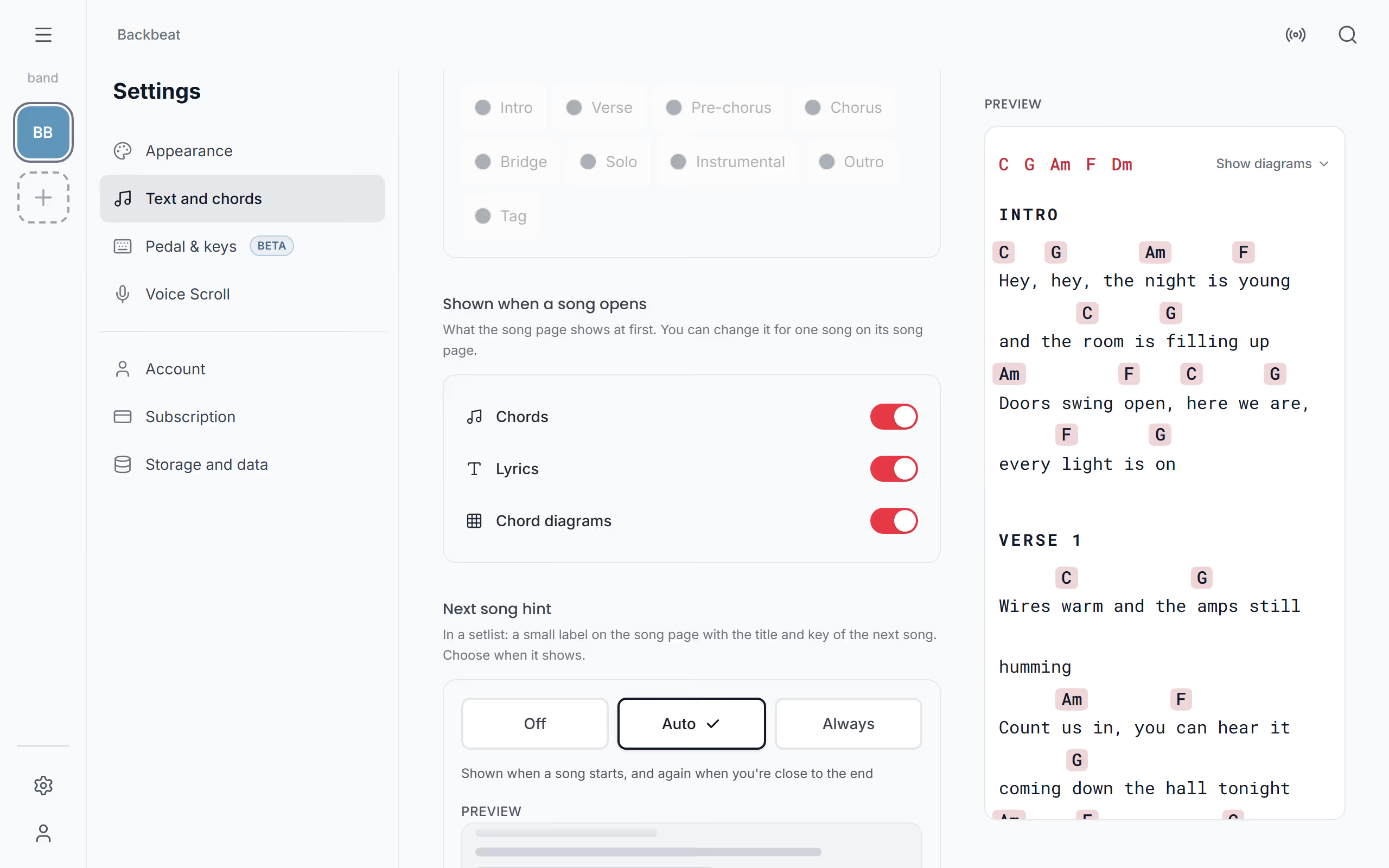
Change one song only
Sometimes a single song needs to look different: a ballad where you'd rather hide the chords, or a chart written in bars that should keep its layout. In that song's three dots, Display shows or hides chords, lyrics and diagrams, and picks the chord style and the Layout, fixed or wrapped, for that song only. Once you have scrolled down and the song's title sits small at the top, a tap on the title opens the same panel. A red dot on the three dots tells you the song has its own settings, and Reset to defaults takes it back to yours, while the song's zoom stays as it is. With the chords set, choose how the verse and chorus headings look.
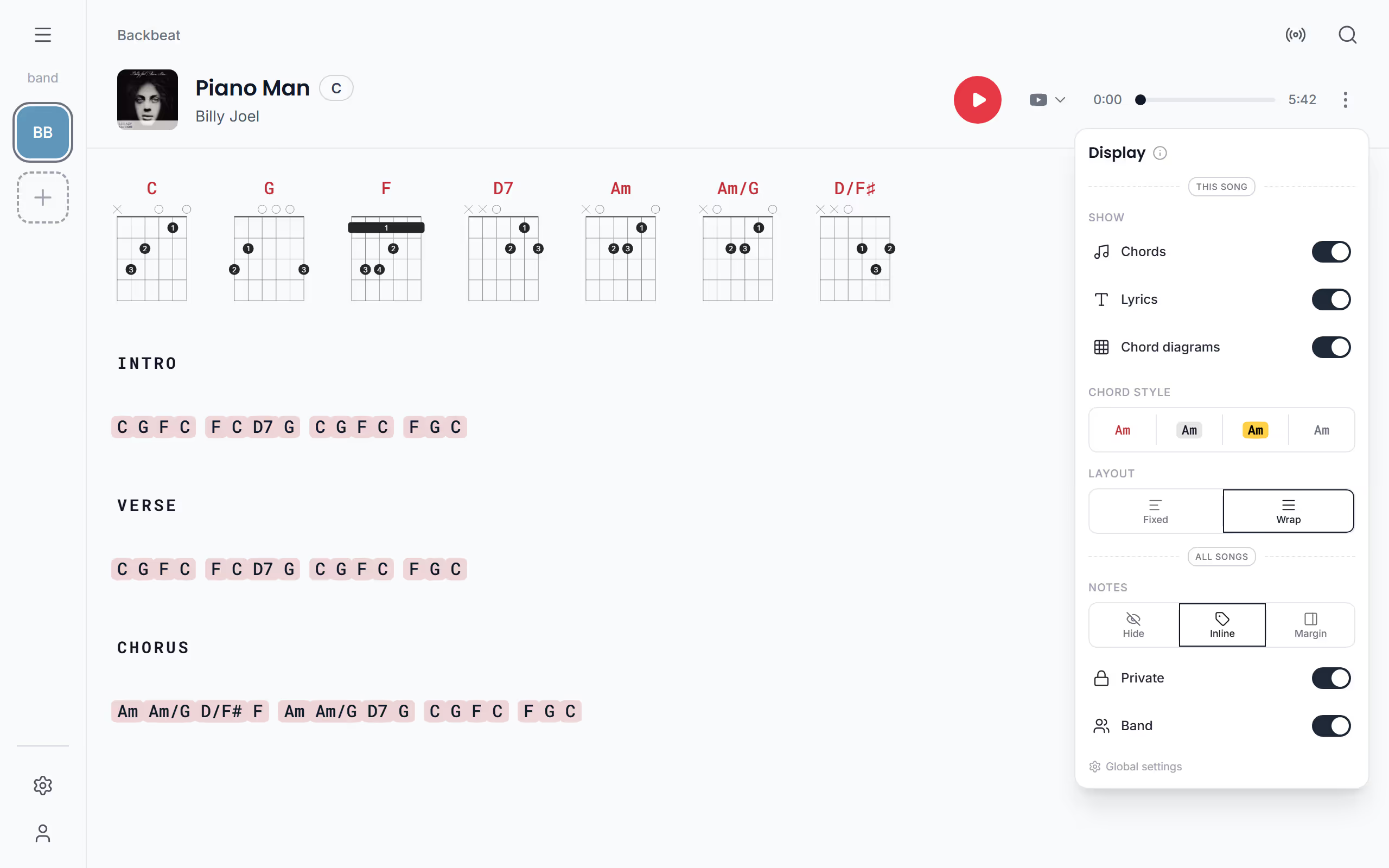
Questions
- Which chord style is easiest to read on a dark stage?
- High contrast is the most legible chord style in a dark room: it shows the chords in bold type on yellow boxes. It works best together with the extra dark Stage theme.