Make a setlist in Stage Friend: songs, order and sets
A setlist in Stage Friend is a named list of songs from your library, in the order you'll play them, split into sets if the night has breaks. You make one for a gig, a rehearsal or a party, fill it with songs and drag them into place. Every set adds up its own length, so you can tell before the night whether it fits the time you've been given.
Updated
Open a setlist
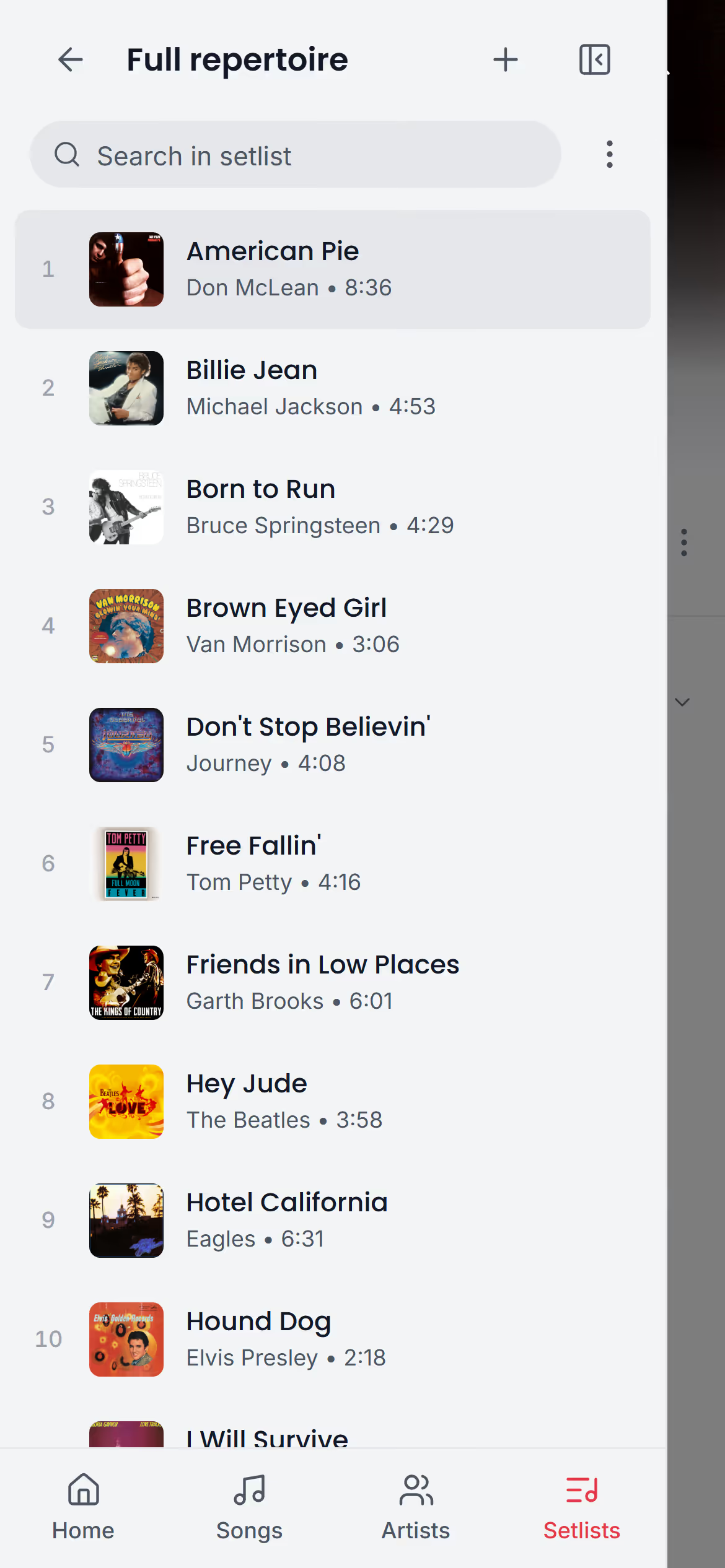
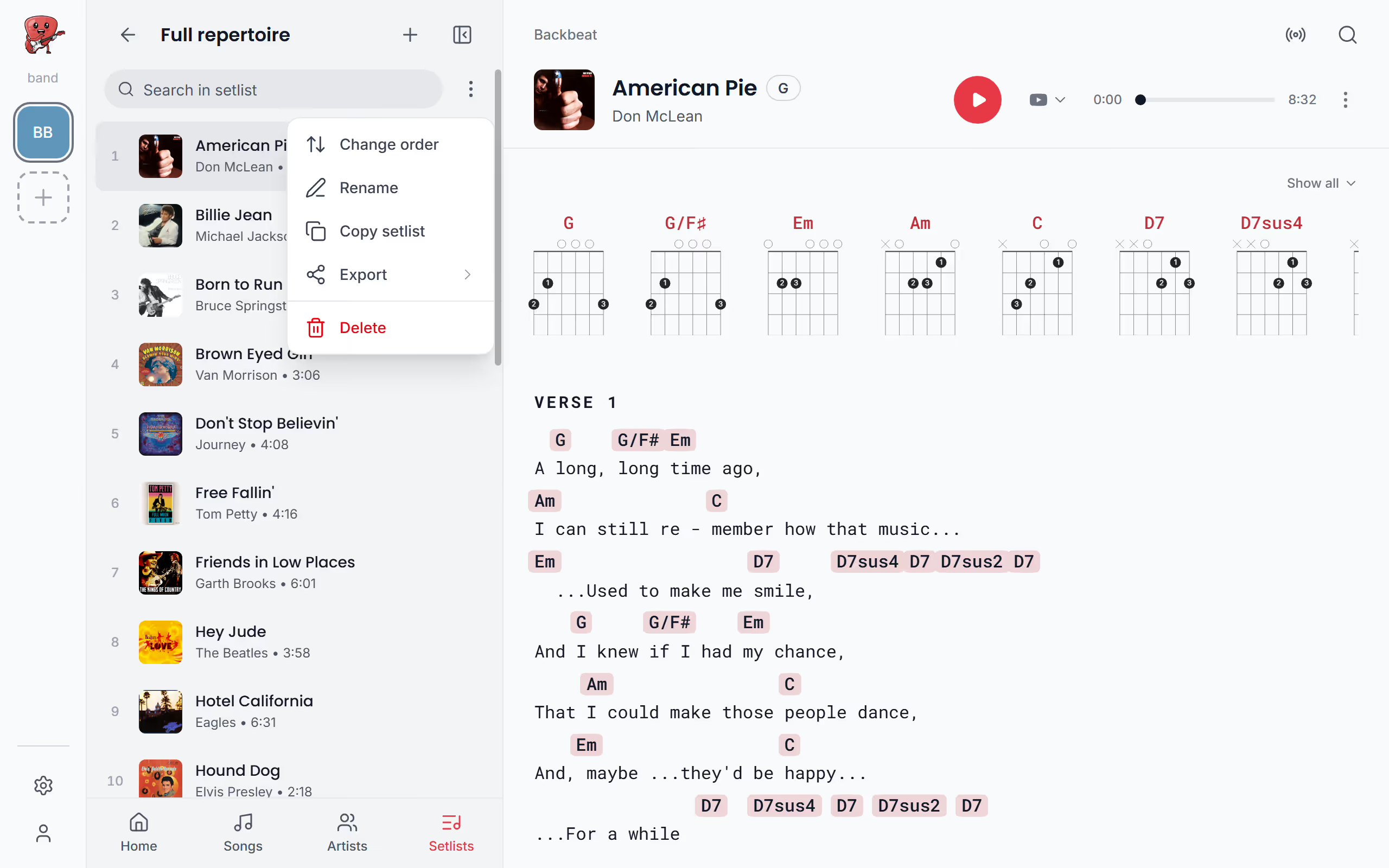
All your setlists live under Setlists in the menu. Once you have a few, sort them by name, Recently updated, Most songs or Longest, and as soon as you have a gig, Filter can show only the Gig setlists or only the ones Without gig. When you open one, its songs show in the menu in playing order, numbered, with the sets between them, ready to play.
Create a setlist
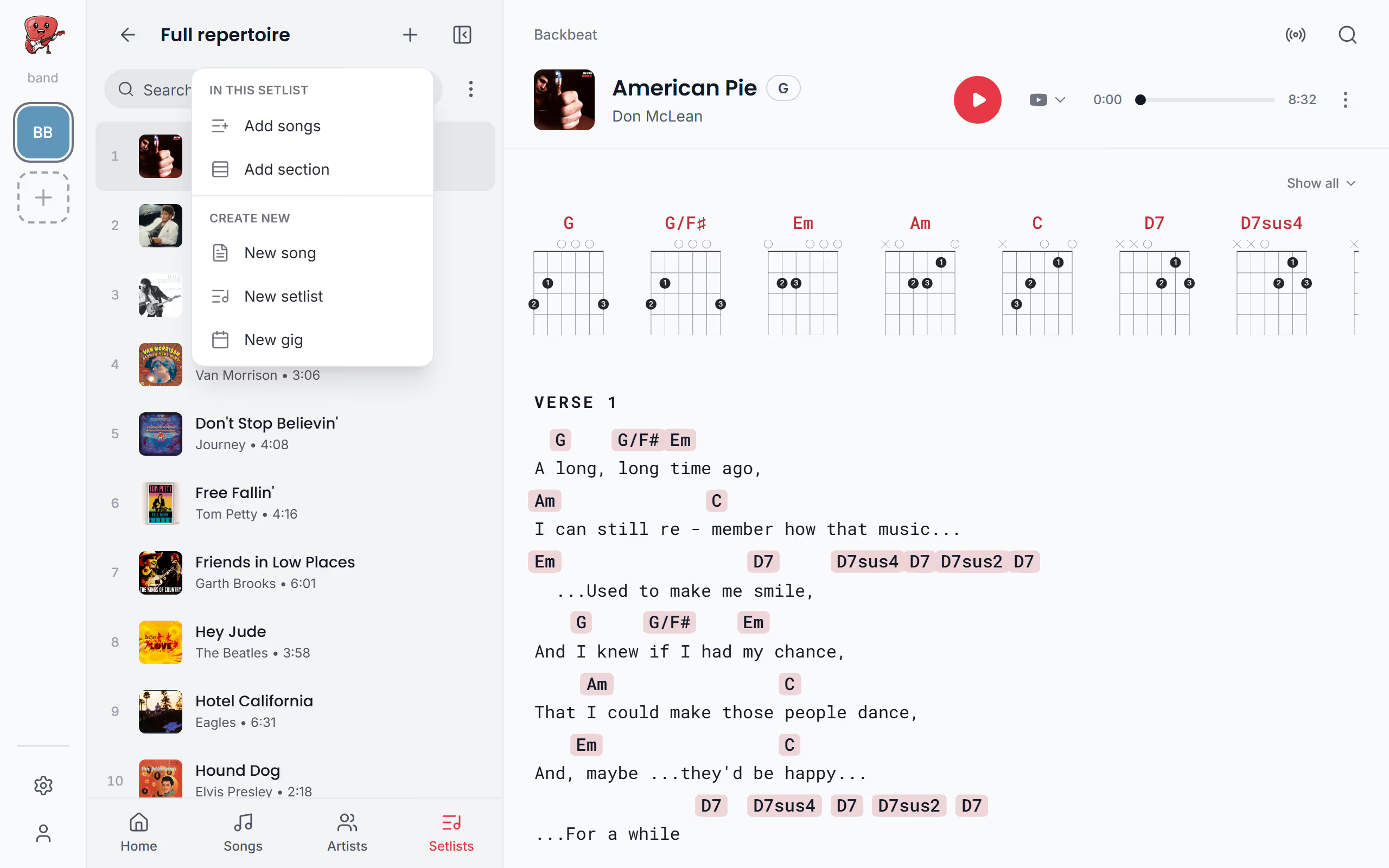
Most setlists start from scratch: tap + in the menu, choose New setlist, give it a name like the venue or the date, and it opens empty, ready for songs. An empty Setlists screen has a Create setlist button too. If this gig is much like the last one, start from a copy instead. Choose setlist to copy brings over the songs and sets of a setlist you already have, and Choose songs lets you pick only some of them, which is handy when you want last month's set minus the two songs that didn't land.
You can also make a setlist on the way from a song: in a song's Add to Setlist, tap New setlist, and the new setlist is created with that song already in it. A gig gets a setlist of its own when you create the gig. On the free plan, once a band has three setlists, New setlist shows a lock and offers an upgrade.
Add songs to it
With the setlist open, tap + and choose Add songs; an empty setlist also has an Add song to setlist button in the middle. Songs come from your library, and Select from library shows them all with a tick box each, the songs already in the set ticked. In a big library, two filters save time: to see only what's missing, tap Show and choose Not added, and the songs already in the set leave the list. Select all then ticks every song still in the list, and Save changes puts the new songs at the end of the set. Untick a song that's already in it and it comes out when you save.
If a song isn't in your library yet, Search online finds it on the web and adds it to your songbook and to the end of the set at the same time. An empty setlist can also be filled in one go with Choose setlist to copy.
Starts on your setlist in the menu. Not there yet? See Open a setlist.
Add a song from its own menu
Often the idea comes while you're looking at a song: this one would close the first set nicely. On the chords and lyrics page, open the three dots and choose Add to Setlist, and a list of your setlists opens under Save in, with the one you used last at the top. Tap a setlist and the song joins the end of it; a filled circle shows which setlists the song is already in, and tapping one of those takes it out again.
The same Add to Setlist is in a song's three dots in your song list and in a setlist on a computer or a tablet held sideways. On a phone, swipe a song to the left in any list and tap Add to Setlist.
Change the order
The order is half the work of a good set: where the opener goes, where the ballad sits, what you save for last. On every device, open the setlist's three dots and choose Change order: a handle appears beside each song, you drag the songs by their handles and tap Done when it's right. In a gig's setlist, Change order is in the gig's three dots while the Setlist tab is showing.
With a keyboard, the handles work too: in Change order, move to a handle, press space to pick the song up, move it with the arrow keys and press space again to put it down. Dragging is off while you're searching the setlist or showing only the songs not yet played, so clear those first.
Starts on your setlist in the menu. Not there yet? See Open a setlist.
Move a song with your finger
On a phone or a tablet you don't need Change order at all. Press and hold a song in the setlist for a moment until it lifts off the list, then drag it to its new place and let go; the other songs slide aside to make room. A scroll never starts a drag, since the song only lifts once your finger has rested on it. The set breaks move the same way: press and hold one and drag it to where the break should fall.
Remove a song from the setlist
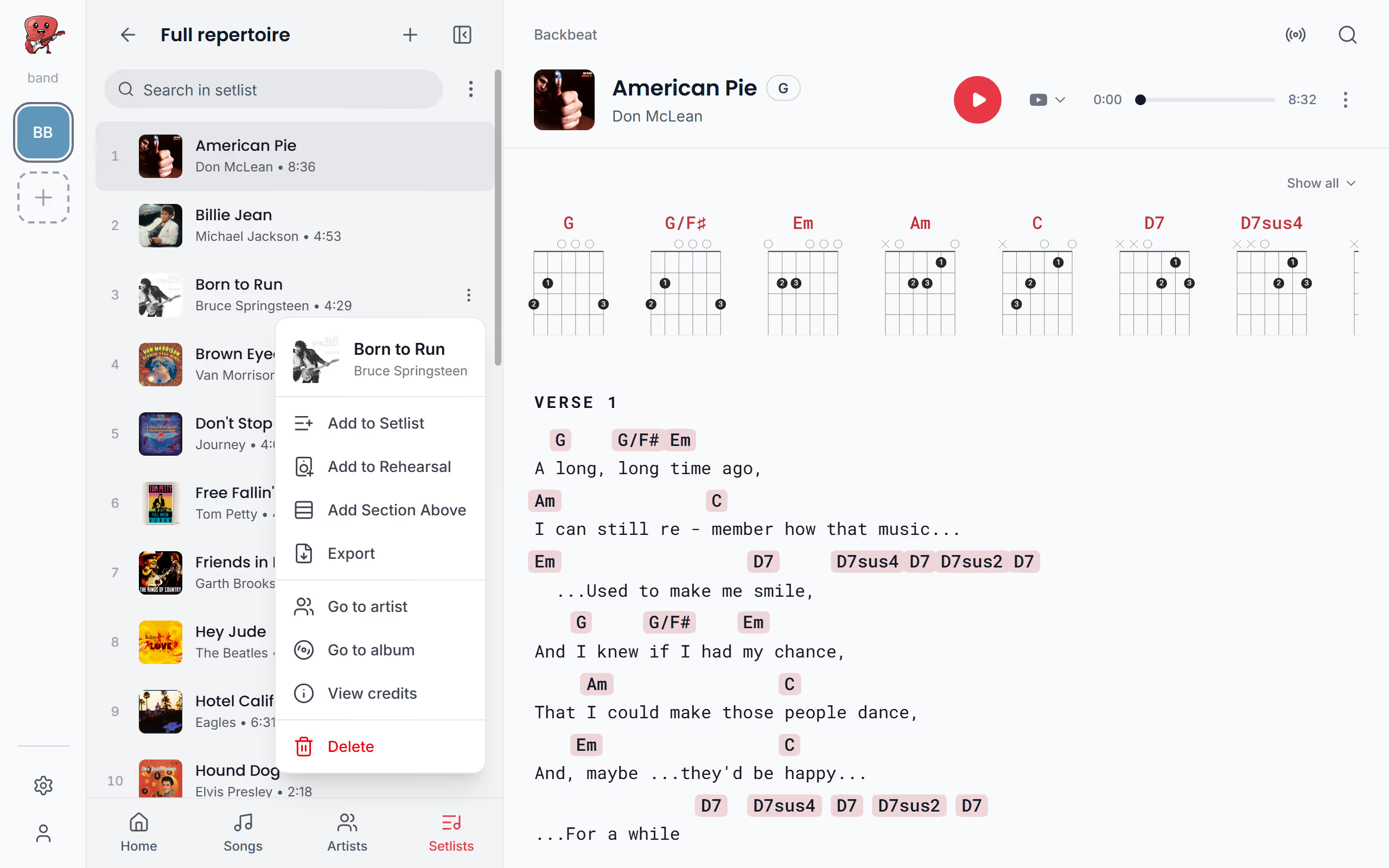
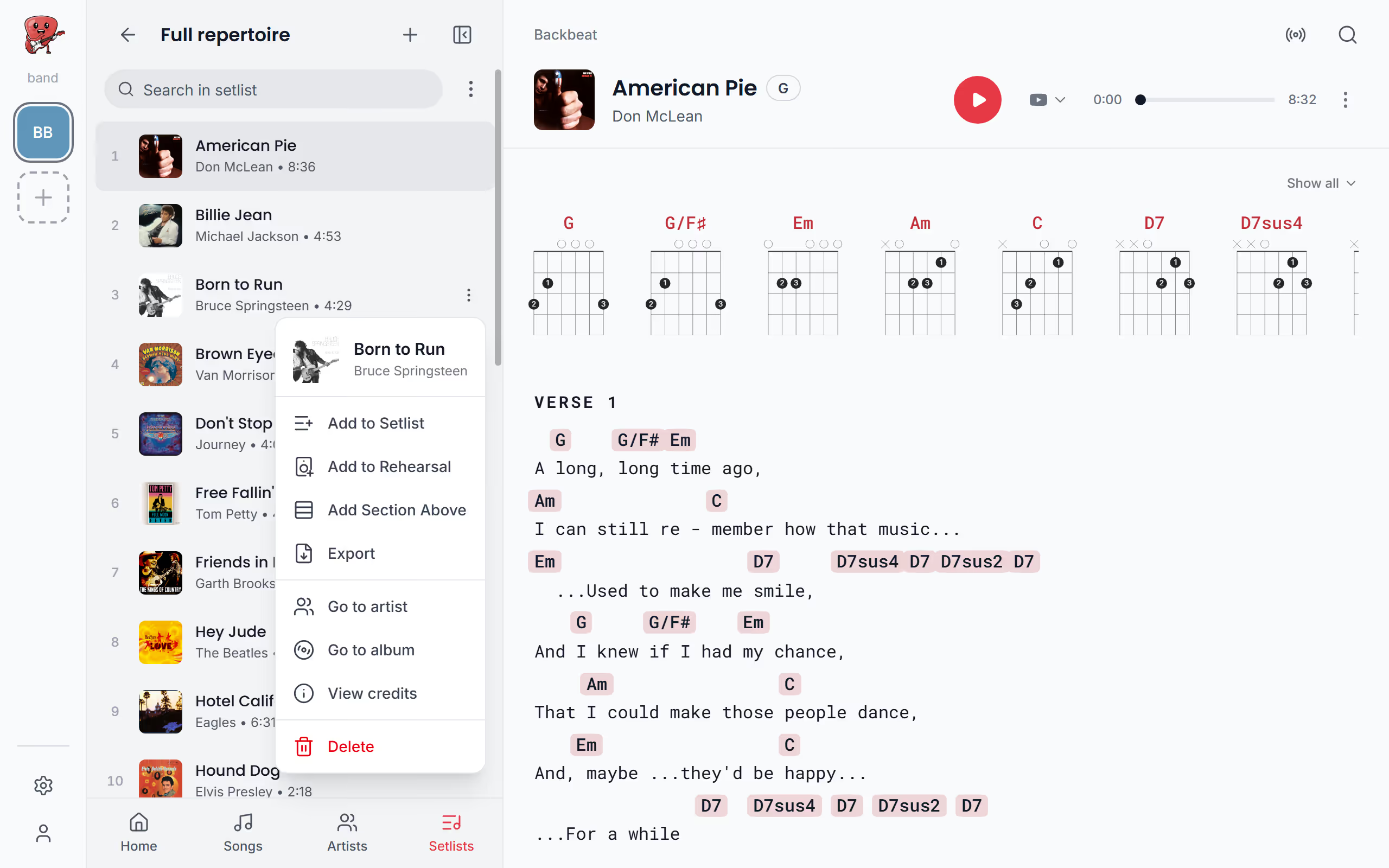
When a song drops out of the set, swipe it to the left on a phone and tap Delete, or on a computer or a tablet held sideways open its three dots in the setlist and choose Delete. Stage Friend asks Remove from setlist? before it goes, and only the setlist loses it: the song stays in your library with its chords and lyrics, ready for the next set.
Two other ways take a song out without that question: untick it under Select from library and save, or open the song's Add to Setlist and tap the setlist it's in.
Split it into sets
Most gigs have a break or two, and the setlist can show them. Tap + and choose Add section to start a new set at the end of the setlist. On a computer or a tablet held sideways you can also open a song's three dots and choose Add Section Above to start the new set right there; on a phone, add it with + and then press and hold it to drag it into place. Sets are named Set 1, Set 2 and so on, and you can rename one Encore or whatever you call it. Each set adds up its own song count and length, so you can see at a glance if the first set runs long, and guests on a public gig page that shows the setlist see the break too.
To rename or delete a set, open its three dots and choose Edit or Delete, or on a phone swipe the set to the left. If you delete a set, only the divider goes: its songs stay in the setlist, in the same order, and join the set above. For the lengths to add up, each song needs a length, and you can set a song's length on its chords and lyrics page. Not sure how many songs to learn for the night? The set length calculator works it out from the gig's length, the sets and the breaks.
Rename, copy or delete a setlist
The setlist's three dots hold the housekeeping. Rename changes its name, and Copy setlist makes a new setlist from this one, with all its songs and sets or only the songs you choose, which is the quickest way to start next week's set. Delete removes the setlist after asking, but never the songs: they all stay in your library. The same choices are on each setlist in the Setlists list, in its three dots on a computer or by swiping it to the left on a phone. A gig's setlist belongs to the gig, so it's renamed with the gig and goes when the gig is deleted.
Once the set is in order, play it on stage song by song, or print it or share it with the band.
Questions
- Does a gig have its own setlist?
- Yes, every gig gets its own setlist when you create it, named like the gig. You fill it like any other setlist, and on the gig page it can show the clock time each song starts. See Your gigs.
- How many setlists can I have for free?
- The free Jammer plan has three setlists per band, counting a gig's setlist and the ones your bandmates made. Solo Pro and Stage Pro have as many as you like; see the plans and prices.
- Can I print my setlist?
- Yes, you can print a setlist as a song list for the stage floor or as every song's chord chart. See Print or share a setlist.