Write your own chord sheets in the song editor
The song editor is where you make and fix chord sheets in Stage Friend, and it keeps every chord above the word it belongs to, so you never line chords up with spaces again. Use it to correct a lyric the web version got wrong, write out your own song, colour the lines each singer takes, mark the verses and choruses, and copy chords from one part of a song to another. Everyone in your band sees the change once you save. Adding and changing the chords themselves has its own page, the chord editor.
Updated
Start editing
You open the editor when something on the chart is wrong, or to make the chart your own. Tap the page to show the controls, then the pencil, Edit Song, which is also in the song's three dots. A song with no lyrics yet has Write it yourself, which opens the editor too. Change the words as in any text editor and tap Save when you're done, or Cancel to throw your changes away at once. If you leave the song with changes not saved, Stage Friend asks first and offers Discard changes or Keep editing. While you edit, swiping to the next song is paused, so a stray swipe can't take you away from your changes.
Starts on a song's chords and lyrics page. Not there yet? See Open a song.
The editor's toolbar
The toolbar follows the screen you're on. On a computer or a tablet it sits above the song, with every tool in groups, including alignment, lists and headings. On a phone it's a shorter row with the tools you use most, the chord tools, Song sections, Undo and Redo and the note button, and Aa opens the text formatting. The chord tools live here too, and the chord editor explains how to add and change chords.
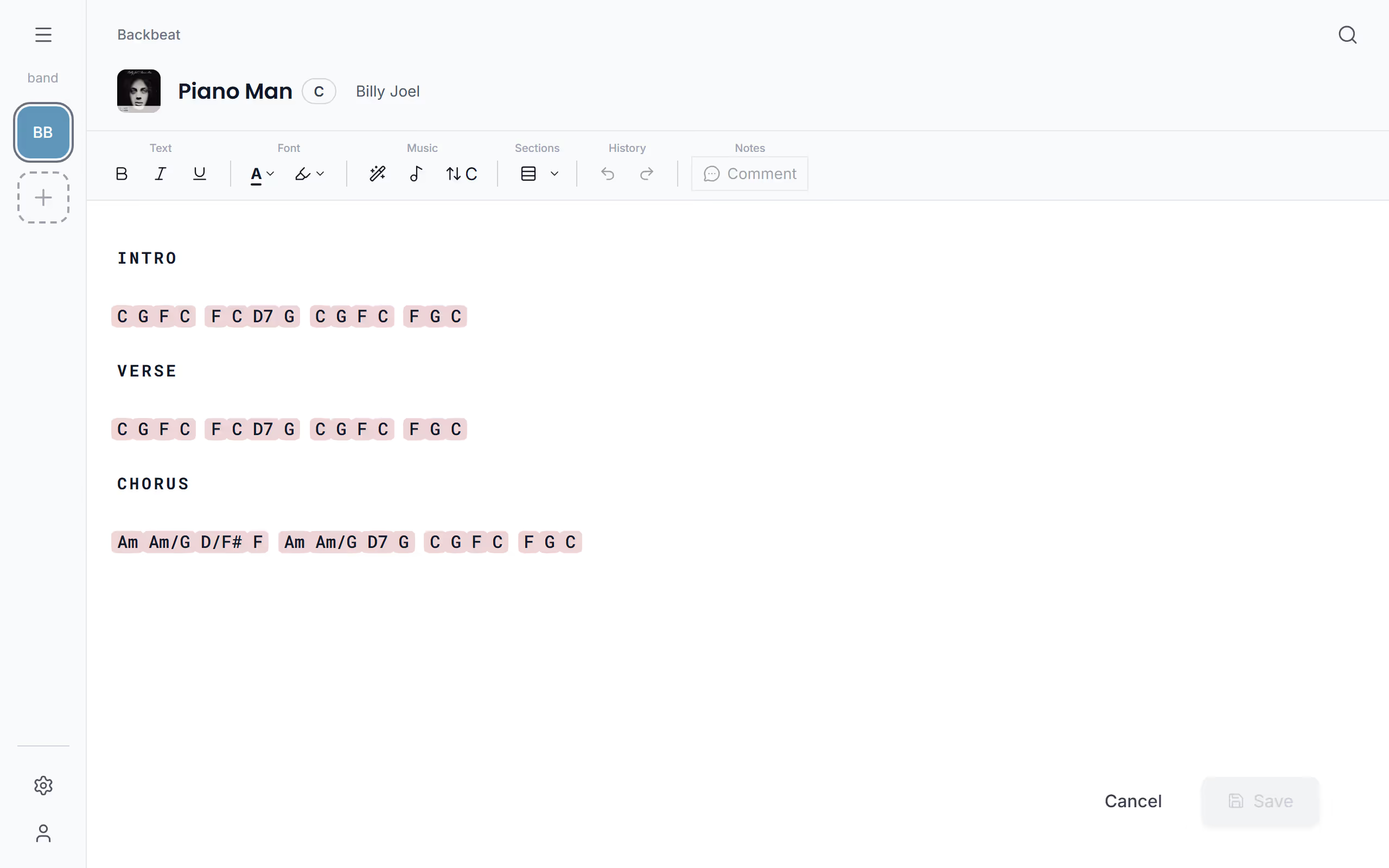
Make words bold, or give them a colour
Formatting is how a chart starts to talk to you at a glance. Bold, Italic and Underline work as in any word processor, and Text color and Highlight color colour a word, for a cue to the drummer or the lines you sing in a duet. Default color takes the colour away again. On a phone you find all of these under Aa, which is called Formatting options, or in the small toolbar that appears when you select words. A PDF keeps them when you choose Keep formatting as you print the song.
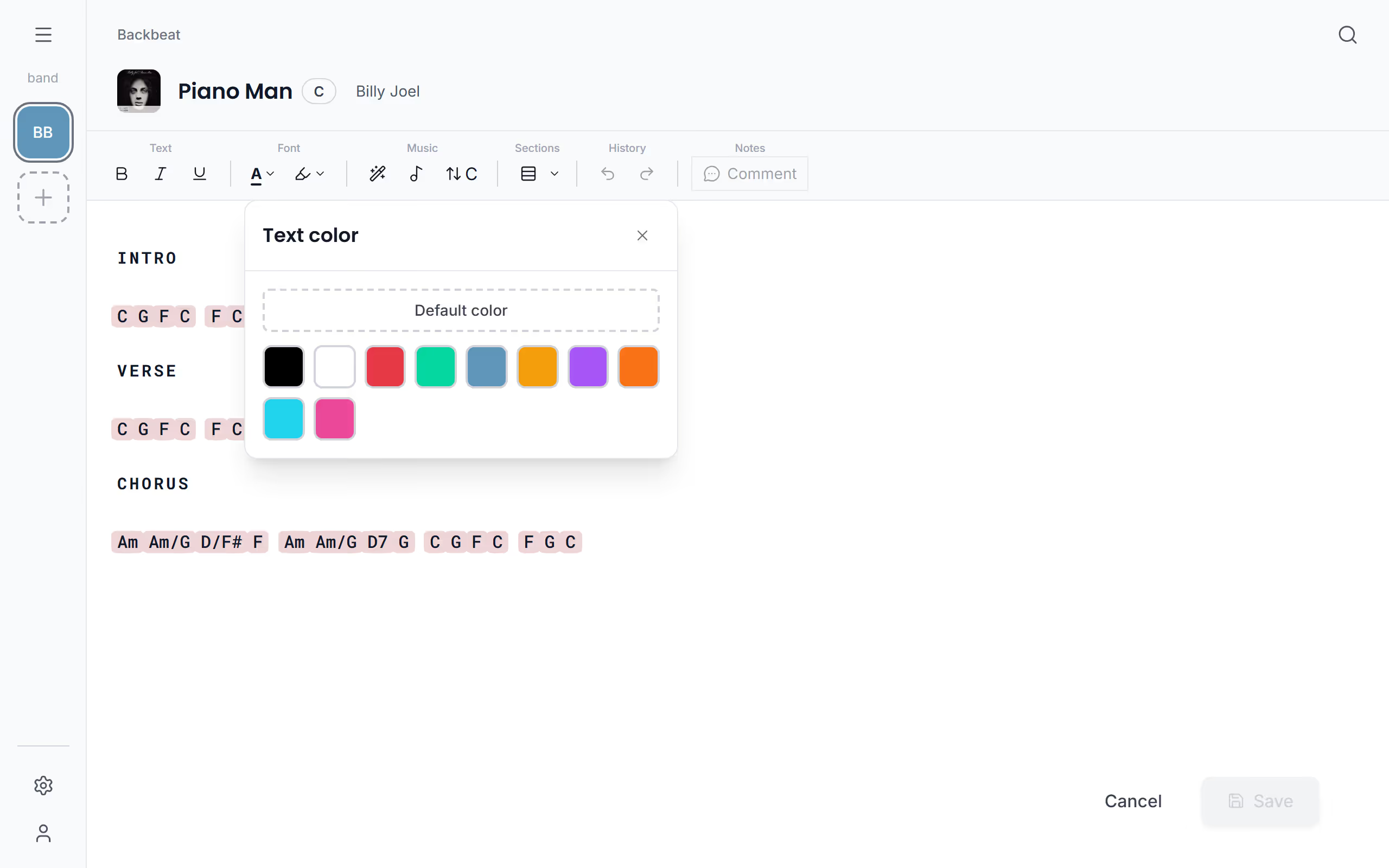
The toolbar by your selection
When you select some words, a small toolbar appears next to them, on a phone as well as on a computer. It holds the formatting, the colours, Chord tool, the section button and Comment for a note. If it covers the line you're working on, drag its grip to move it out of the way.
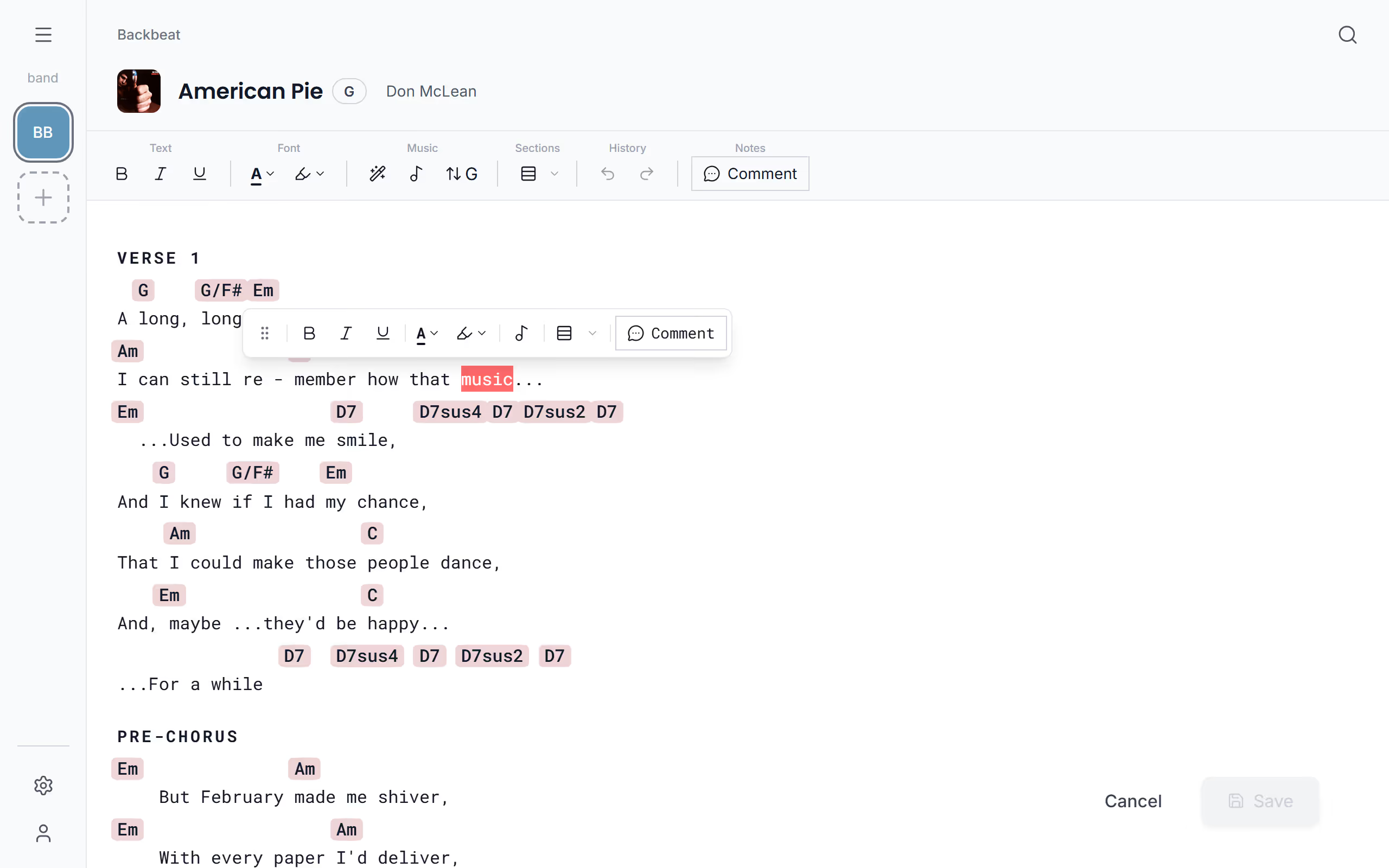
Undo and redo
Undo and Redo go back and forward through everything you did since you started editing: words, chords added, moved or removed, sections, pastes, formatting and the key. So if a paste or Sprinkle Chords does more than you meant, Undo puts the song back the way it was.
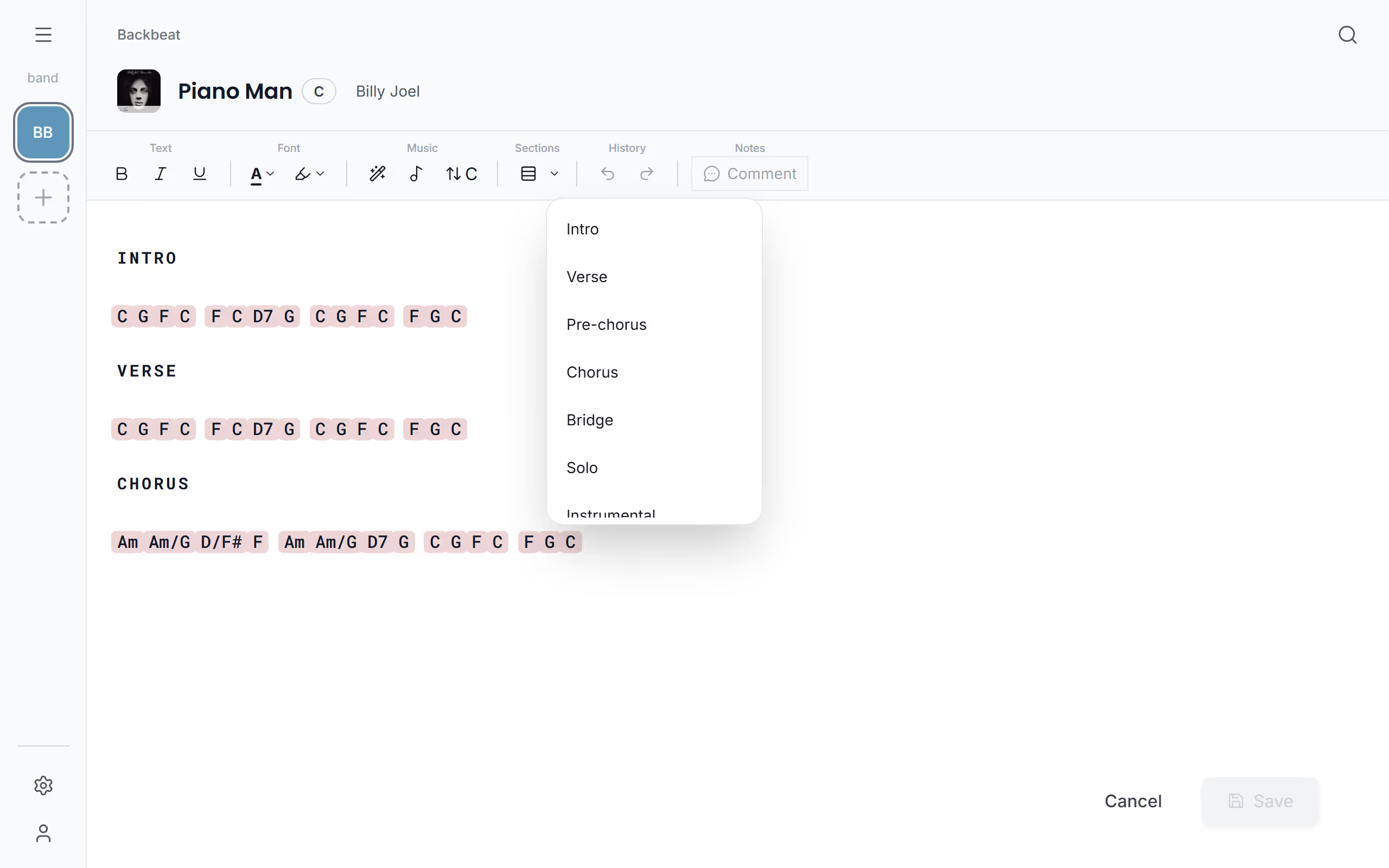
Mark the verses and choruses
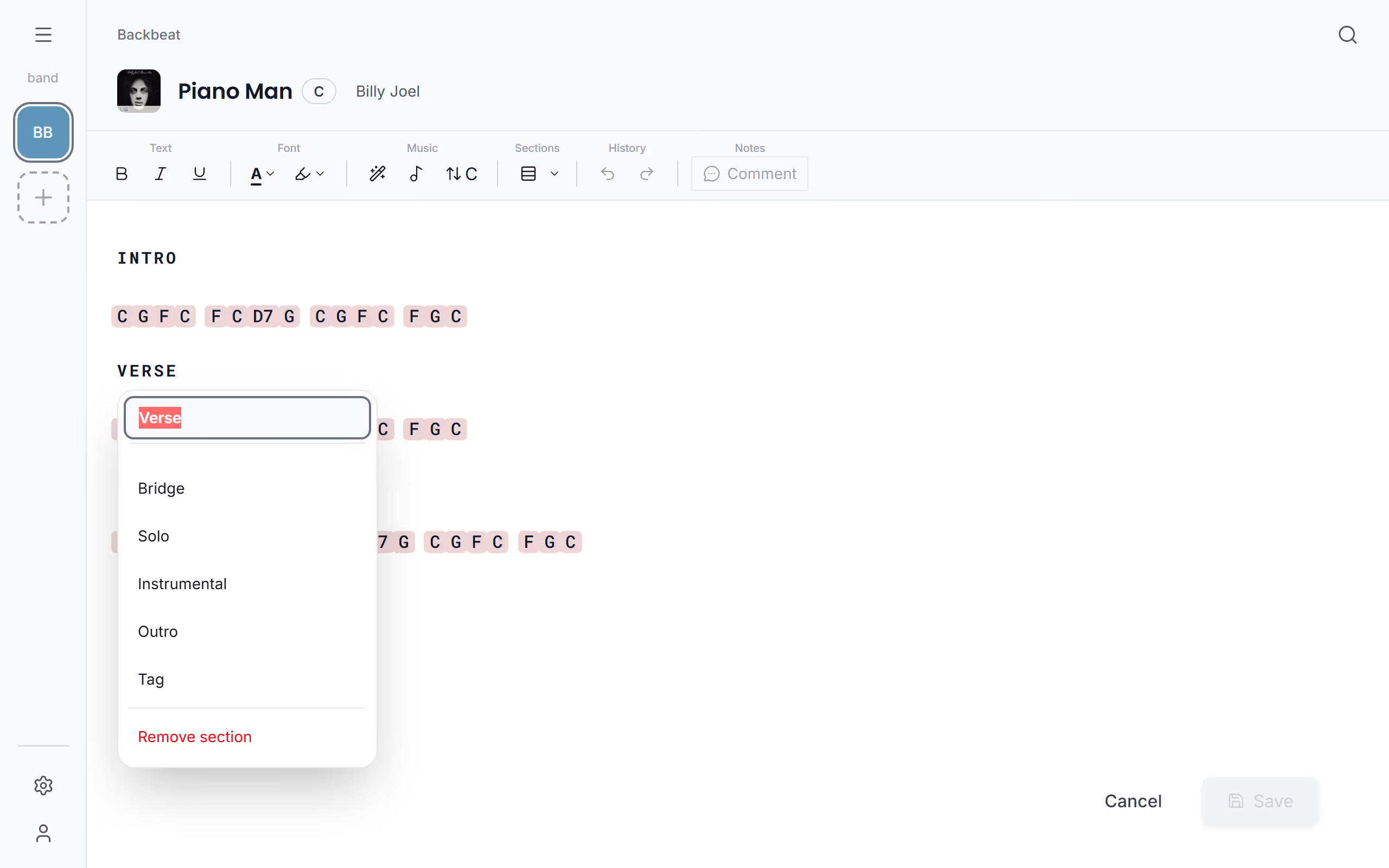
Marked sections make a chart much easier to follow on stage. Put the cursor where the section starts and tap Song sections to add a Verse heading, then use the arrow beside it to pick another kind: Intro, Verse, Pre-Chorus, Chorus, Bridge, Solo, Instrumental, Outro or Tag. If the chart already has a line that says Chorus, select it first and the same button makes it the heading. With the cursor on a heading, the button removes it, and the arrow changes its kind. The button is in the toolbar and in the small toolbar by your selection. How the sections look, their size and colour, is set under Song sections.
Rename, change or remove a section
A section can say more than Verse or Chorus, like Verse 2 or Last chorus. While editing, tap a section's heading to give it a name, change its kind, or choose Remove section. The change is kept when you tap away from it.
Copy chords from one song onto another
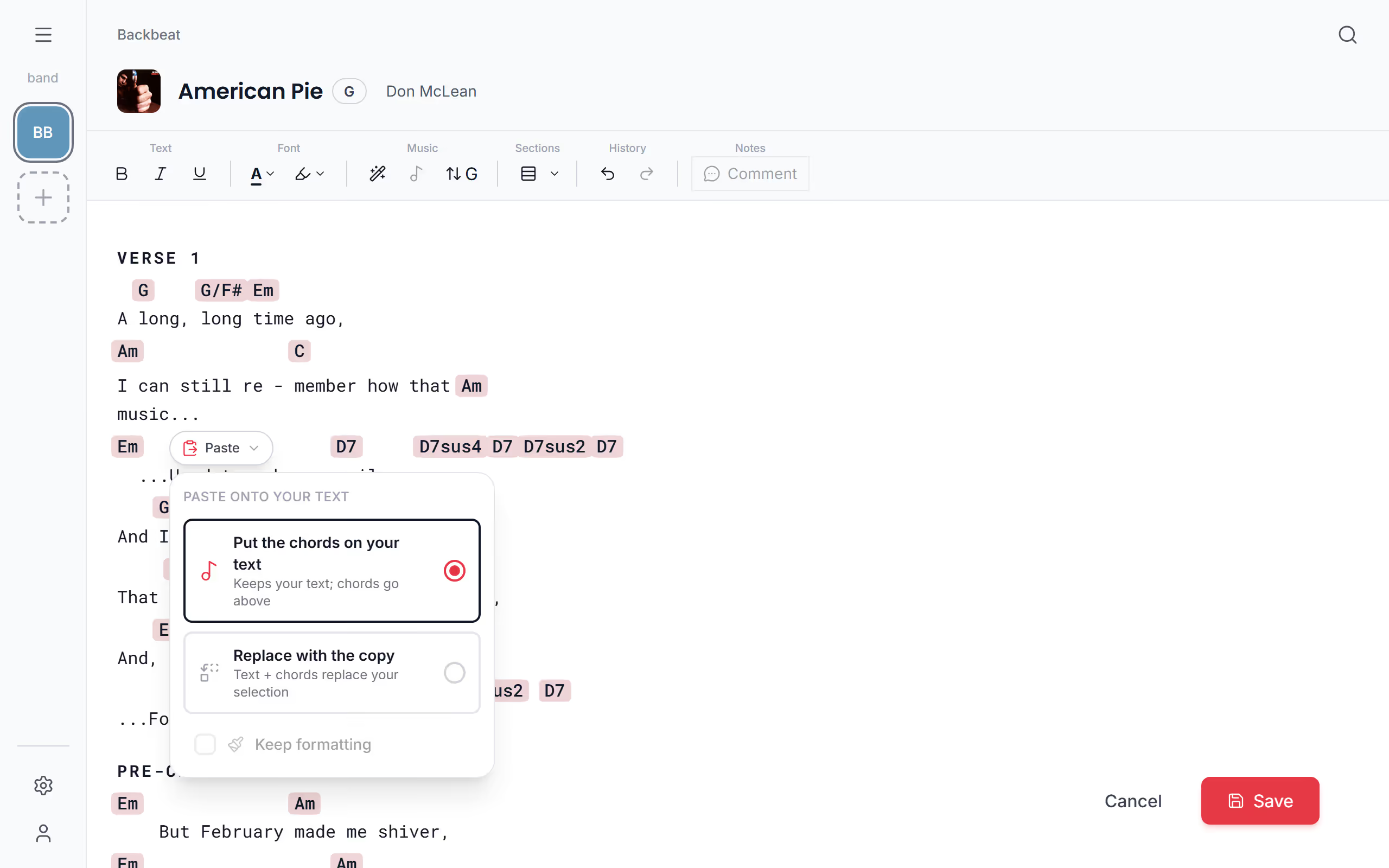
A second verse often has the same chords as the first. Copy a part of a song in Stage Friend, chords and words together, then select the matching lyrics, further down the same song or in another one, and paste. The chords land on your words and your words stay as they are. If you meant to use the copied text instead, tap Paste by the pasted text and choose Replace with the copy. It works best when you select whole lines.
If you paste at a spot with nothing selected, the Paste menu lets you choose Text, Chords and Formatting instead. Formatting is left out unless you ask for it, so a colour copied from somewhere else can't turn invisible in dark mode. A chord chart copied from a website pastes as plain text, chord names and all, and Sprinkle Chords turns those names into chords.
Turn typed chord names into chords
Charts copied from a website often have the chords as plain letters above the words, which can't be transposed or shown as diagrams. Sprinkle Chords, the magic wand in the toolbar, goes through the whole song and turns every chord name, like Am7, D/F# or Gsus4, into a real chord you can transpose and edit. Now and then a lone capital A in the lyrics becomes a chord too, and Undo takes it back. After that, fine-tune single chords in the chord editor, or try the song in another key.
Questions
- Why can't I edit a song?
- In a band someone else owns, editing a song needs edit rights and Solo Pro or Stage Pro. A member on the free plan sees the band's songs and can play from them, but can't change them. See What members can do.
- Do I need to line the chords up with spaces?
- No, each chord is tied to the word it is above, so it stays there when you change the text size, the font or the key, and when a long line wraps.
- Can I edit a song without internet?
- Yes, you can edit songs offline. Your changes are saved on the device and sent to your band as soon as you're online again, see What works offline.