Create a band and switch between bands
A band in Stage Friend is a library of its own: its own songs, setlists and gigs, shared by everyone in it. Your first band is made on your first start, and many players never need another. Make one more for each group you play with, so the wedding band's songs never mix with the Sunday jam's.
Updated
Create a band
When you join a second group, or start a duo on the side, give it a band of its own. Your bands sit as small coloured tiles: on a phone or tablet, tap your band's name at the top of the menu, or the small arrow beside it, and they slide out below it, while on a computer they are in the bar on the left. The last tile is a +, and a tap on it opens Create band straight away. Give the band a Band name and a Band color, which marks its tile so you can tell your bands apart at a glance, and tap Create. Stage Friend switches to the new band and opens its band page, ready for you to add songs and invite the others.
If you have no band at all, for instance after deleting your last one, the start page shows a Create Band button that opens the same dialog. The free plan lets you own two bands, and Solo Pro and Stage Pro have no limit; bands that others invite you to never count. When you own two on the free plan, the + tile shows a lock instead, and a tap on it shows what the paid plans add.
Switch band
Everything you see in Stage Friend, the song library, the setlists and the gigs, belongs to the band you are in, so switching band changes the whole app at once. On a phone or tablet, tap your band's name at the top of the menu and pick another band's tile; on a computer, tap its tile in the bar on the left. You can also type a band's name into search and tap it there. A small people mark on a tile means someone else owns that band and shared it with you: you play from it like your own, but the owner decides who is in it.
Open the band page
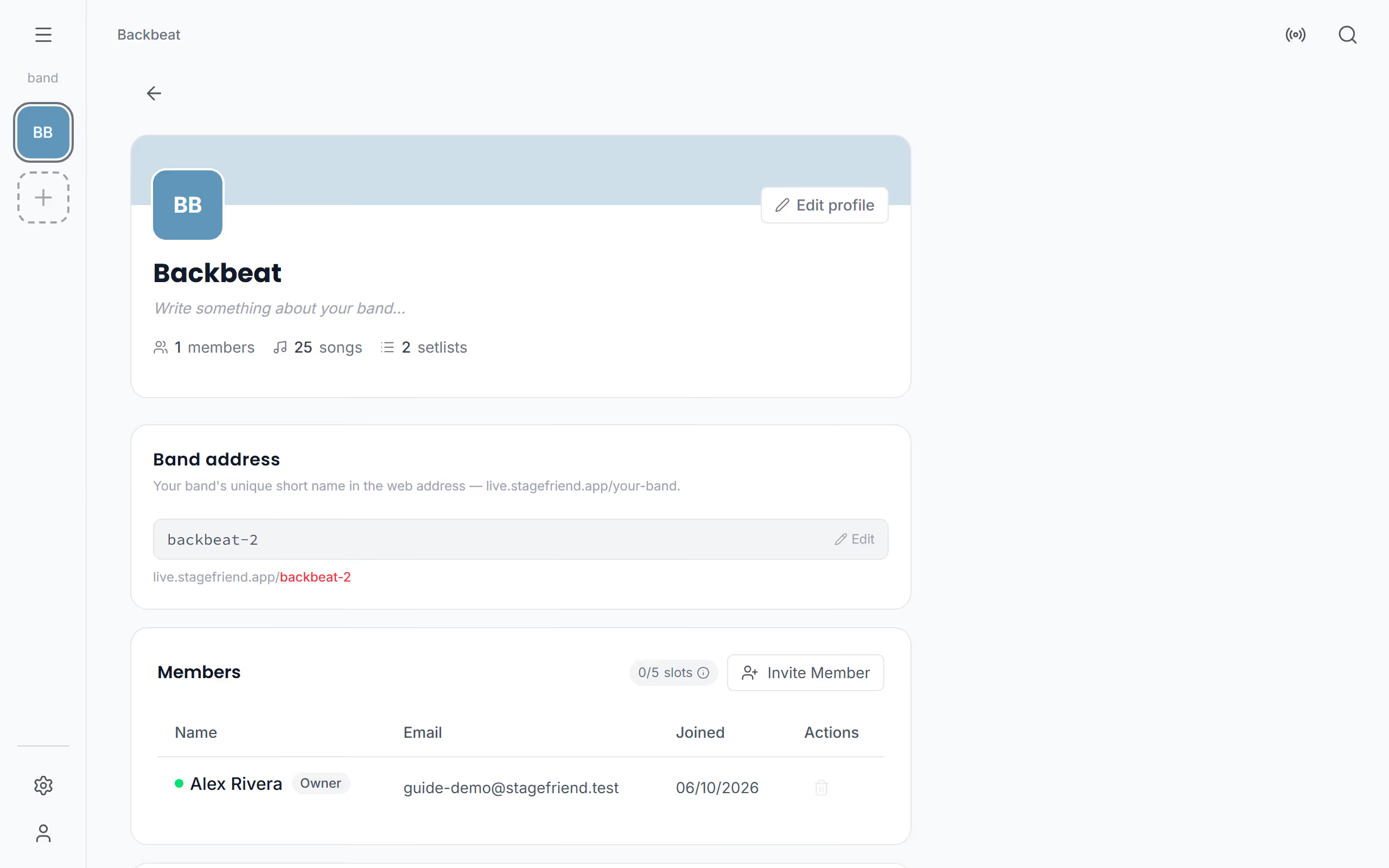
The band page is where the band itself lives: who is in it, its setlists and its public profile. To open it, go to the band's song library and tap the tile of the band you are already in once more. On a computer you can also tap the band's name at the top of the menu. The owner renames the band there too: tap Edit profile (on a phone it is the pencil by the band's initials), change the Band name and tap Save, which is handy when the working title finally becomes a real name.
The owner also sets the Band address on the band page, the short name that makes the band's web address on live.stagefriend.app. Changing it later stops old links to your band page and its gigs from working, so settle on it before you share it. Edit for the address only shows when you have a connection.
Your band's public profile
If you play out, the band's public page is a link worth sharing: it shows who you are and every gig you have made public. On the band page, the owner taps Edit profile to add a Bio and links to the band's Instagram, Facebook, Spotify and website, then taps Save. They show on the band's public page at its band address, together with the band's public gigs. Gigs need Stage Pro; see Make your gig public for how a gig gets there.
Delete a band
When a band breaks up for good, or a project was only ever a test, the owner can delete it. Delete band is at the bottom of the band page, and you confirm it with Delete permanently. The band and its songs and setlists are deleted for every member, so if anyone wants to keep the charts, make a PDF of the setlist first. Deleting needs a connection, and members who are not the owner don't see the button: they ask the owner to remove them instead. Once your bands are set up, the next step is to invite the people you play with, so the whole band reads from the same charts.
Questions
- Do I have a personal library?
- Your songs always live in a band in Stage Friend, and a band you own alone works as your personal songbook. Many players keep one band for themselves and join the bands they play in.
- How many bands can I have?
- On the free plan you can own two bands, and with Solo Pro or Stage Pro as many as you like. Bands other people invite you to don't count towards the limit.