Write notes on a song's lyrics
Notes in Stage Friend sit right on the words they are about: a cue for the break, a reminder to hold back in the second verse, or who sings which line. You can keep a note to yourself or share it with the whole band, give it a colour, and choose how notes show on the chords and lyrics page. Notes need Solo Pro, and notes the band sees need Stage Pro. They're a lighter touch than editing the song: the words and chords stay as they are, and the note sits on top.
Updated
Write a note
Write a note when there's something you keep forgetting at the same spot, like the stop before the last chorus. While editing the song, select the words it's about and choose Comment, either in the toolbar or in the small toolbar by your selection; on a phone the toolbar's note button is a speech bubble. Write the note and tap Save note, and it sits on those words the next time you play the song.
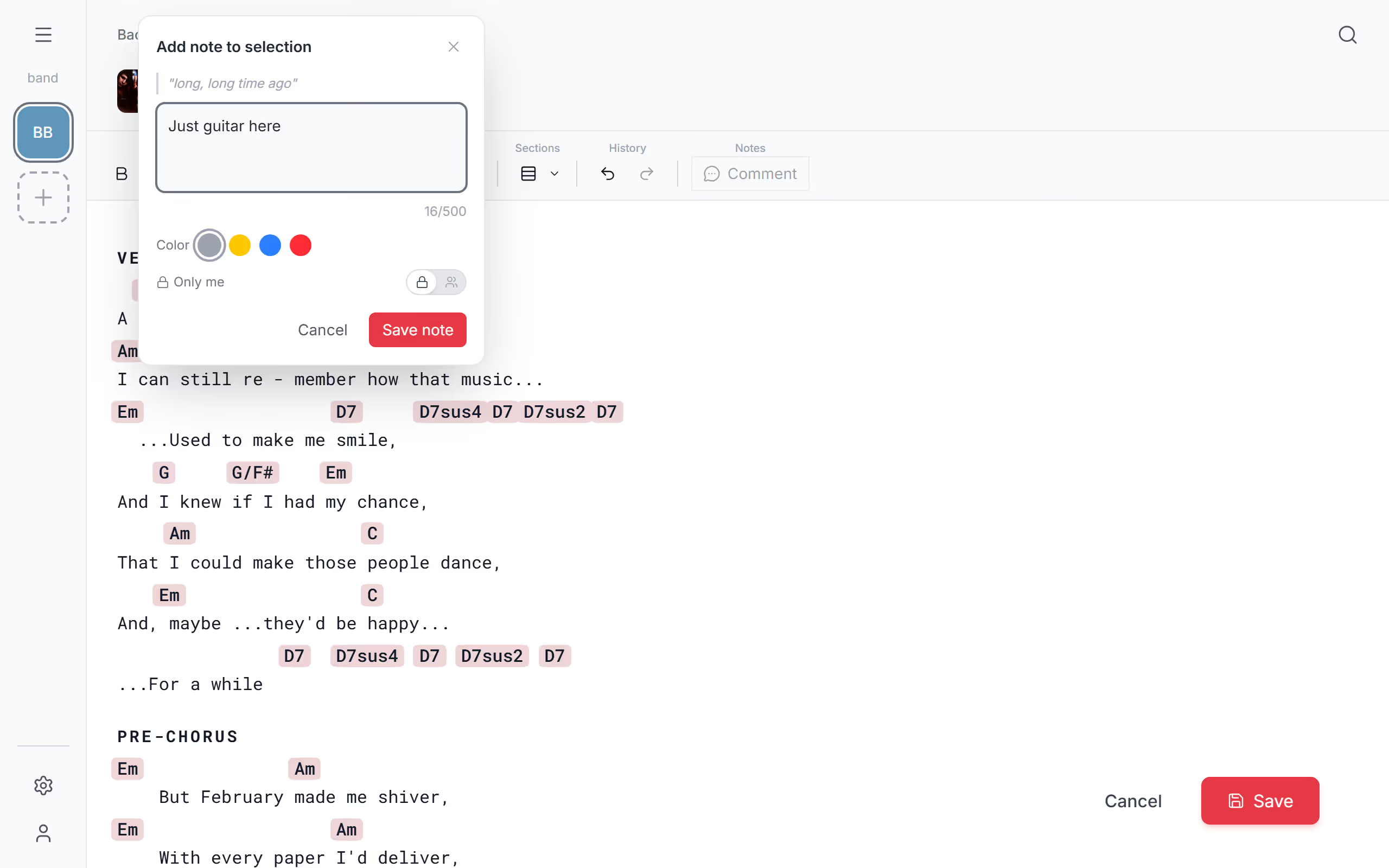
Keep it private or share it with the band
Some notes are only for you, like where to take a breath, and some are for everyone, like the stop the whole band has to hit. When you write a note, use the switch to choose Only me or Band. A note for Only me is seen by you alone, while Band notes show for everyone in the band and need Stage Pro.
Change, move or delete a note
Notes change as a song settles in. Tap a note to change its text or its colour: the dots beside Color give you yellow, blue, red or the plain grey standard, which helps if you give each person or each kind of cue its own colour, then tap Apply. If a note covers something you need to read, drag it out of the way by its handle, and the delete button on the note removes it for good.
Show or hide notes
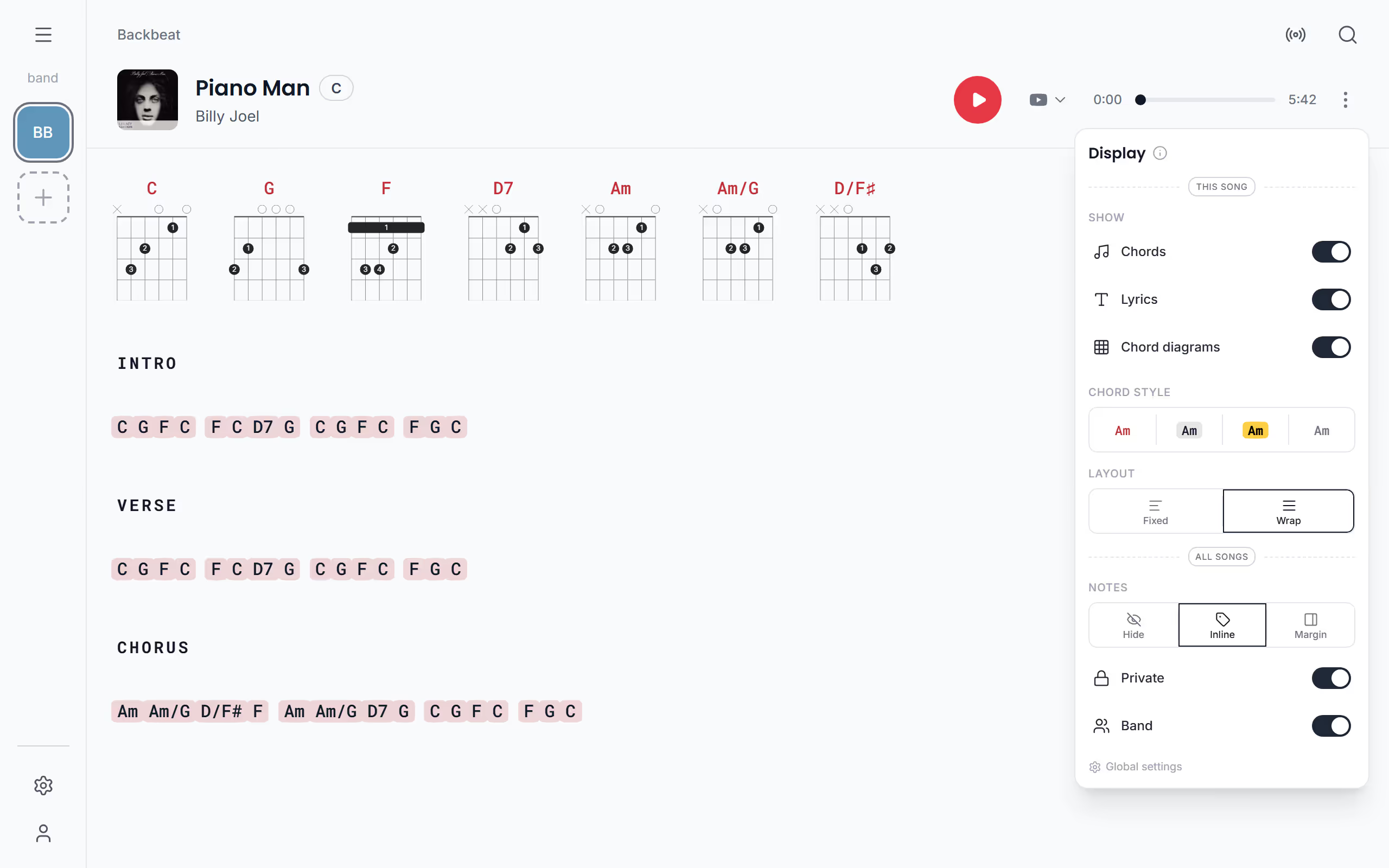
How much you want to see depends on the moment: every note at rehearsal, perhaps none on stage. In the song's three dots, Display and then Notes let you choose Inline, Margin or Hide, and whether to show Private notes, Band notes or both. The choice is for every song on this device.
On the chords and lyrics page itself, Note settings switches between inline and margin, and filters the notes by colour, or to My notes or Band notes. Reset filters shows them all again. Notes can go on paper too: turn on Notes in a song's PDF export to print the band's notes and your own at the top of the song. For more ways to mark up a chart, mark the verses and choruses or colour the lines you sing.
Questions
- Can my band see my notes?
- Your band sees a note only if you choose Band when you write it. A note for Only me stays private, and band notes need Stage Pro.
- Are notes included on the free plan?
- No, notes need Solo Pro, and notes the whole band sees need Stage Pro. On the free plan you can still colour the text of a song in your own band to mark a cue.
- Can I print my notes?
- Yes, a song's PDF can include its notes. Under Advanced settings in the export, turn Notes on, and the band's notes and your own private ones are printed at the top of the song. Other members' private notes are never printed.