Create an account and sign in
A Stage Friend account is free, and you can create one with your email and a password or with your Google or Facebook account. The account is what lets your band share songs with you, and with Solo Pro or Stage Pro it also brings your own library to every device you sign in on. Signing up takes a minute. If you sign up with your email, you confirm the address once before you can sign in.
Updated
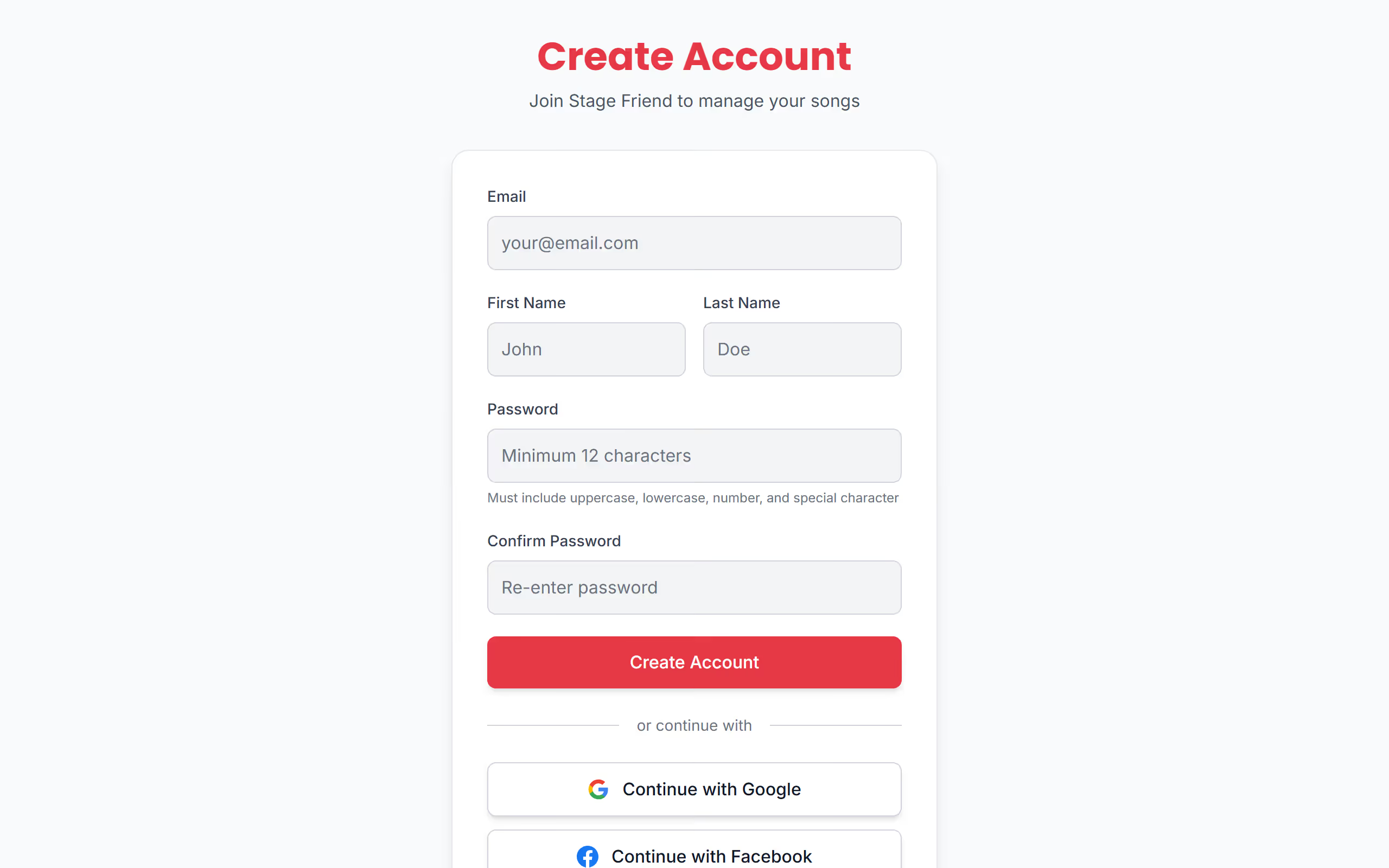
Create an account
Choose Sign up on the sign-in page. The quickest way in is Continue with Google or Continue with Facebook: there's no password to make up and no email to confirm, so you go straight to the app, and the same buttons on the sign-in page create the account too if you don't have one yet. If you'd rather use your email, type it with a password of at least 12 characters with upper and lower case letters, a number and a special character. That's stricter than many sites, so a short phrase with a number and a symbol in it is often easier to remember than a jumble of letters.
After you're in for the first time, the first start helps you name your band and add the songs you play.
Confirm your email
If you signed up with your email, Stage Friend first makes sure the address is yours, and you can't sign in with the password until it's confirmed. Open the mail from Stage Friend and tap the link within 24 hours. If nothing arrives, look in the spam folder first. If it isn't there either, or the link has run out, try to sign in: the page then says the address isn't verified yet and offers Resend Verification Email, and a new link is on its way. Once the address is confirmed you sign in as usual, and that's the only time you need to do it.
Sign in
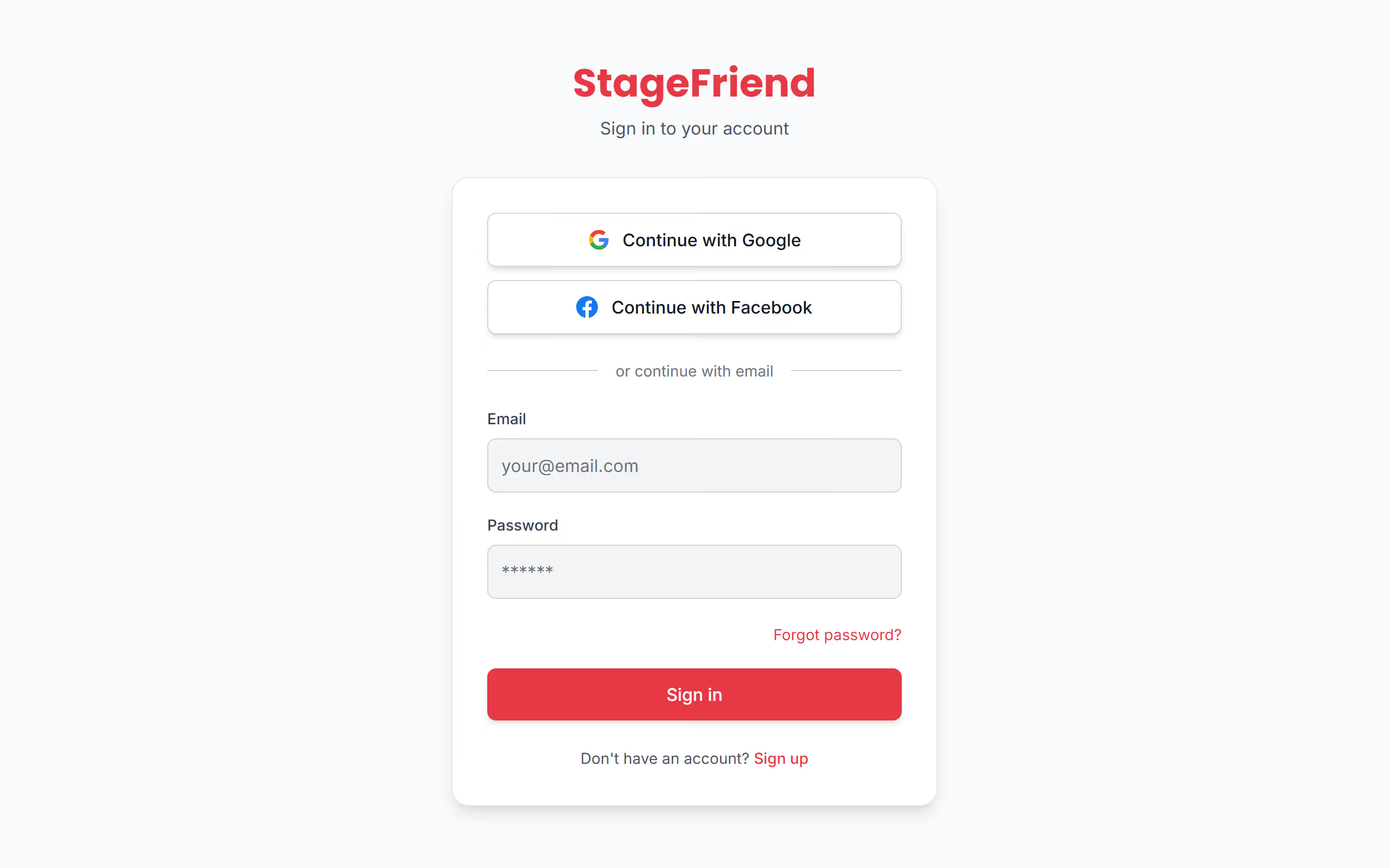
On a new phone, or the laptop you use at rehearsals, sign in the same way you signed up: with your email and password, Continue with Google or Continue with Facebook. What decides the account is the email address. Google or Facebook with the same address as your account takes you into that account and connects it, while one with another address makes a new, empty account, so pick the one you used before.
Once you're in, your songs come down to the device. On the free plan, bands others share with you come along everywhere, while your own bands stay on the device you made them on, see On several devices. You then stay signed in, even offline, for 30 days after you last used the app with a connection, see Stay signed in offline.
Sign out
Signing out is for when you lend the tablet to someone or leave a shared computer. Open Settings, choose Account and then Sign Out. On a computer you can also reach the account page from the person icon at the bottom of the narrow bar on the left. Your songs stay on the device, so the next time you sign in on it everything is there straight away.
Clearing the browser's data or reinstalling the app is different: that removes the songs from the device, see Sign out or clear. If you've forgotten your password and can't get back in, Reset a forgotten password takes a minute.
Questions
- Is a Stage Friend account free?
- Yes, creating a Stage Friend account is free and needs no card. The free plan, Jammer, has no time limit, see Plans and prices.
- Which ways can I sign in to Stage Friend?
- You can sign in to Stage Friend with your email and a password, with Google or with Facebook. The email address decides the account, so Google or Facebook with the same address as your account takes you into that same account.
- Why can't I sign in after signing up with my email?
- Stage Friend asks you to confirm your email before you can sign in. Open the mail from Stage Friend and tap the link within 24 hours, or choose Resend Verification Email for a new one, see Confirm your email.